Roblox is one of the most popular gaming platforms, and many users want to play it on Mac. In this guide, you’ll learn how to download and play Roblox on Mac, launch games from your browser, use a controller, enable full screen, and improve performance.
This tutorial works for MacBook Air, MacBook Pro, and iMac.
Can You Play Roblox on MacBook?
Yes, you can play Roblox on a MacBook. Whether you’re using a MacBook Air or MacBook Pro, Roblox runs smoothly on most modern Mac devices. You can also play Roblox on other Apple computers, including iMac and Mac mini. In addition, Roblox is available on iPhone and iPad if you prefer playing on mobile.
To play Roblox on Mac, your device should be running macOS 10.13 High Sierra or newer. However, for the best performance in 2026, it’s recommended to use a more recent macOS version. You’ll also need a stable internet connection, ideally at least 5–10 Mbps, to avoid lag and loading issues.
If your Mac is older and Roblox doesn’t run well, you can lower graphics settings in-game or try playing on mobile instead.
How to Download and Run Roblox on Mac
It’s very easy to download and run Roblox on Mac. Just follow these simple steps:
- Download and install the Roblox Player by visiting the Roblox website, selecting a game, and clicking Play.
- Launch the Roblox Player from your web browser after the installation finishes.
- Start playing your game.
I’ll explain each of these steps in more detail below.
1. Install the Roblox Player
The Roblox Player works similarly to platforms like Steam. It’s a lightweight app that lets you access and play multiple Roblox games, and it’s very easy to install on Mac.
Step 1. First, open Safari on your Mac, and then visit the official Roblox download page for Mac.
Step 2. Click on the Download Mac App button, the Roblox.dmg file will begin downloading to your Mac.

Step 3. Once the download is complete, open the file from your Downloads folder and double-click the Roblox.dmg file.
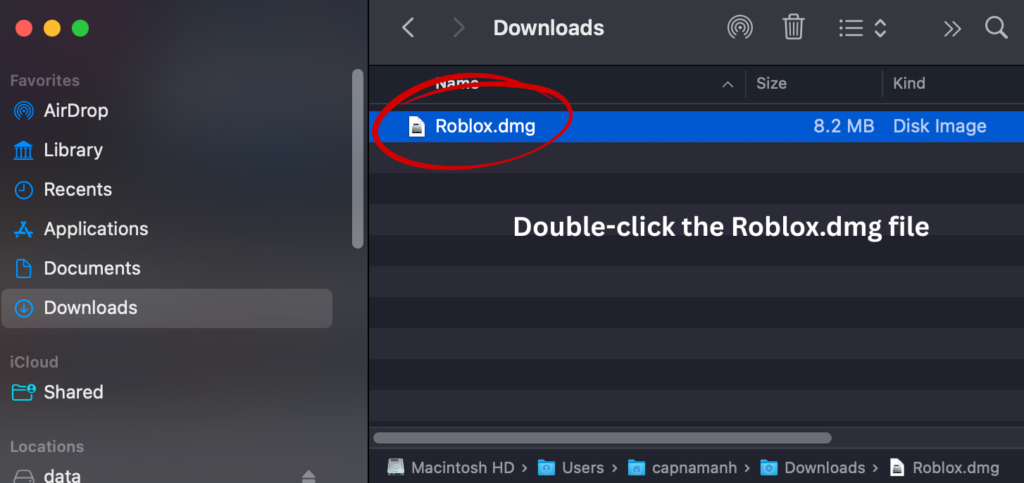
Your Mac may show a permission dialog. Click Allow or Open to continue.
Step 4. A Roblox installation window will appear. Drag the Roblox icon into the Applications folder to install it.
After the installation finishes, open Applications and launch Roblox.
2. Launch the Player via the Browser
Once Roblox Player is installed on your Mac, you can launch it directly from your browser.
- Go to the Roblox website, sign in to your Roblox account, or create a new account if you don’t have one.
- Choose any game, and click the Play button.
- Roblox will automatically open the Roblox Player and start loading the game.
If this is your first time launching Roblox on Mac, you may see a pop-up asking for permission. Simply click Open Roblox or Allow to continue.
3. Play a Game
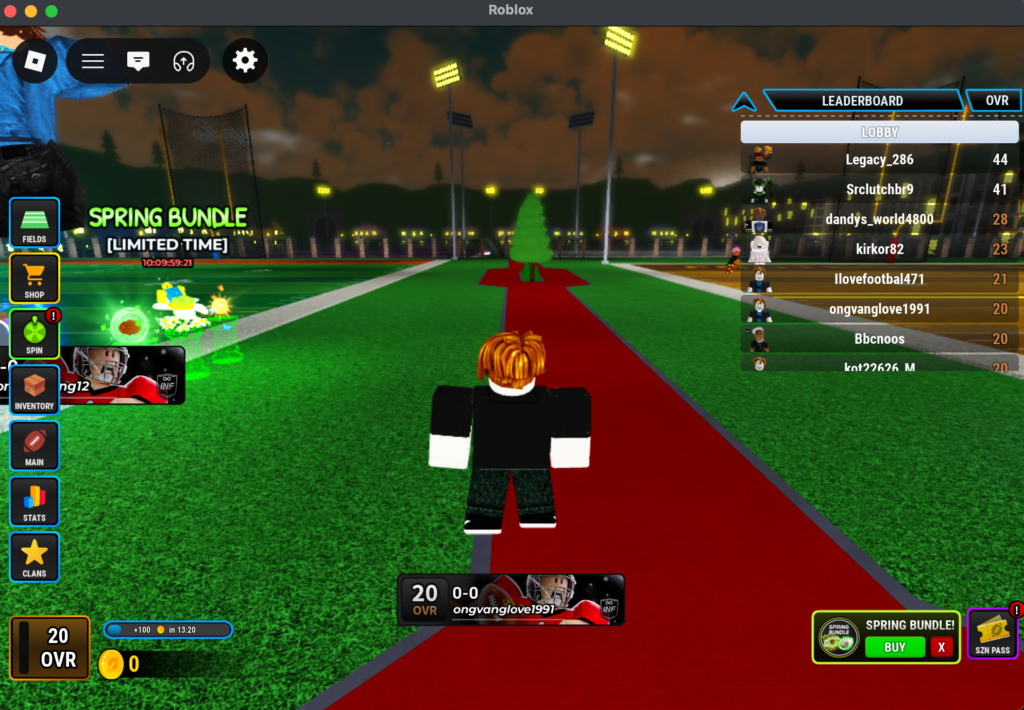
The Roblox Player will now open automatically and connect you to the game you selected. Once the game finishes loading, you can start playing right away.
How to Play Roblox on Mac Without Download
If you don’t want to download Roblox Player, you may still be able to play Roblox directly in your browser. This can be useful if your Mac is low on storage or if you don’t have permission to install apps.
While Roblox doesn’t officially support browser-only gameplay on Mac, you can use third-party cloud gaming services. For example, you can visit the now.gg website, sign in to your account, choose a Roblox game, and start playing instantly in your browser. Performance may vary depending on your internet connection.
How to Play Roblox with a Controller on Mac
You can also play Roblox on Mac using a Bluetooth controller.
To connect a controller on Mac:
First, turn on your Bluetooth controller. Then open the Apple menu and go to System Settings.
Click Bluetooth in the sidebar and make sure your controller is in pairing mode.
If you’re using a PS5 controller, press and hold the PS button and the Share button together until the light bar starts flashing.
Next, find your controller in the list of nearby devices and click Connect.
Once connected, open Roblox and launch a game. Some Roblox games will automatically detect the controller.
You should now be able to use your controller while playing Roblox on your Mac.
How to Get Roblox Full Screen on Mac
Playing Roblox in full screen can help you focus on the game and see everything more clearly.
Luckily, switching to full screen mode on Mac is very simple.
While Roblox is open, press Fn + F on your keyboard to enter full screen mode.
If you want to exit full screen, press Fn + F again.
You can also use the green window button in the top-left corner of the Roblox window to toggle full screen.
How to Make Roblox Run Better on Mac
If Roblox is running slowly on your Mac, first check whether your computer performs well with other apps. If your Mac feels slow overall, improving system performance may help.
However, if only Roblox is lagging, you can improve performance by lowering the graphics settings.
To lower graphics in Roblox:
While playing a game, press the Esc key to open the menu.
Click Settings.
Scroll down to the Graphics section.
Change Graphics Mode from Automatic to Manual.
Lower the graphics level to improve performance.
Press Esc again to return to the game.
Reducing graphics quality can significantly improve FPS, especially on older Mac devices.
Check Your Network Connection
A slow or unstable internet connection can cause Roblox to lag on Mac. To check your connection:
Go to the Apple menu and open System Settings.
Select Network from the sidebar.
Check your current connection, which may appear as Wi-Fi or Ethernet.
If you see a green indicator, your connection is working properly.
If the indicator is yellow, red, or gray, there may be an issue with your internet connection.
Close Other Apps Using Memory
Running too many apps at the same time can slow down Roblox. Closing unused apps can improve performance.
To close an app, press Command + Q while the app is active.
If an app is not responding, press Command + Option + Escape to open the Force Quit window.
Select the app and click Force Quit.
Conclusion
Installing Roblox on Mac is quick and easy. You can download the Roblox Player, launch a game from your browser, and start playing within minutes.
If Roblox isn’t running properly, check that your Mac has enough storage space and a stable internet connection. You can also free up space by removing unused apps, which may help improve overall performance.