Want to play Windows games on your Mac without installing Windows? Whisky is a free, open-source macOS app that provides a simple interface for running Windows software and games on Apple Silicon Macs. It uses Wine together with Apple’s Game Porting Toolkit and translation technologies to help Windows games run on macOS.
In this guide, we’ll show you how to download Whisky, install it on your Mac, create your first bottle, and use that bottle to install Steam and a Windows game. The setup is relatively straightforward, but there is one important thing to know before you begin: Whisky is no longer actively maintained by its developer. It may still work for compatible games, but future macOS updates or game changes could cause problems that will not receive official fixes.
Important: Whisky is no longer in active development. The steps below explain the setup described by the original guide, but compatibility is not guaranteed. If you plan to play Windows games regularly or want ongoing updates and support, consider an actively maintained option such as CrossOver.
- What Is Whisky for Mac?
- What You Need Before Installing Whisky
- Step 1: Download Whisky
- Step 2: Install Whisky on Your Mac
- Step 3: Open Whisky and Install Its Components
- Step 4: Create Your First Bottle
- Step 5: Install Steam in Whisky
- Step 6: Download and Run a Windows Game
- Troubleshooting Tips
- Should You Still Use Whisky?
- Frequently Asked Questions
1 What Is Whisky for Mac?
Whisky is a macOS application designed to make Wine-based Windows compatibility easier to use. Instead of working with command-line tools, you can create separate Windows environments, install Windows applications, and manage them through Whisky’s graphical interface.
These environments are called bottles. Each bottle acts as its own Windows-style environment, with its own settings, installed programs, and files. For example, you can create one bottle for Steam and use it to install several games, or create separate bottles to keep different applications apart.
Whisky does not install a full copy of Windows, and it does not turn every Windows game into a Mac game. It translates and runs supported Windows applications through compatibility layers. Some games work well, while others may have graphical issues, poor performance, or fail to launch.
Whisky’s Development Status
The developer has ended active development of Whisky and recommends looking at CrossOver instead. This means the app may continue to run on your current Mac, but you should not expect new fixes or compatibility updates when a future macOS release or game update breaks something.
2 What You Need Before Installing Whisky
Before downloading the app, check that your Mac meets the basic requirements. According to the guide, Whisky is intended for Apple Silicon Macs and does not support Intel-based Macs.
| Requirement | Details |
|---|---|
| Mac model | An Apple Silicon Mac with an M-series chip, such as M1, M2, M3, or a newer generation. |
| Intel Macs | Not supported by Whisky. |
| macOS | A recent macOS version. Compatibility may vary because Whisky is no longer actively maintained. |
| Storage | Enough free space for Whisky, its components, the bottle, Steam, and the Windows game you want to install. |
| Internet | A stable connection to download Whisky, its first-launch components, game installers, and updates. |
Tip: Keep some extra storage available. Windows games can require significantly more space than the Whisky app itself, and each bottle may use additional disk space for installed programs and game files.
3 Step 1: Download Whisky
To download Whisky, visit the official Whisky GitHub repository. Open the Releases section to find the available installer files. Downloading from the developer’s own GitHub project helps you avoid unofficial mirrors and repackaged installers.
Launch Safari, Chrome, or another browser on your Mac and open the official Whisky GitHub repository.
On GitHub, select Releases to view the available versions. Open the release you want and review its notes and downloadable assets before proceeding, especially because the project is no longer actively maintained.
In the release assets, download the macOS disk image file if one is provided. Wait for the DMG to finish downloading. By default, it will usually appear in your Mac’s Downloads folder.
Note: The GitHub repository and its release assets may change over time. If no installer is available, do not use an unknown mirror or a repackaged installer.
4 Step 2: Install Whisky on Your Mac
Once the DMG file has downloaded, you can install Whisky just like many other Mac applications. Open the disk image and move the app into your Applications folder.
Go to your Downloads folder and double-click the Whisky DMG file. macOS will mount the disk image and open a new Finder window.
In the window that appears, drag the Whisky app icon into the Applications folder or shortcut. Wait for macOS to copy the application.
After the copy finishes, return to Finder. You can eject the mounted Whisky disk image from the sidebar and keep the downloaded DMG as an installer backup or delete it if you no longer need it.
Open your Applications folder and make sure Whisky is listed there. The app is now installed on your Mac.
Installation complete: Whisky has been copied to your Mac. Next, open it for the first time so it can download the components required for its Windows compatibility environment.
5 Step 3: Open Whisky and Install Its Components
When you launch Whisky for the first time, it needs to download the supporting components used to run Windows applications. This includes the Wine and translation components required by the app.
Open Finder, go to Applications, and double-click Whisky. You can also use Spotlight Search to find and open the app.
Follow the instructions shown inside Whisky. On its first launch, the app should prompt you to download or install the components it needs.
Give Whisky a few minutes to download and configure the required files. The time depends on your internet connection and the size of the components.
Once the setup is complete, you should be able to access Whisky’s main interface and create a bottle.
Having trouble with the first launch? Make sure your Mac is connected to the internet and has enough free storage. Since Whisky is discontinued, a component download or setup issue may not have a new official fix.
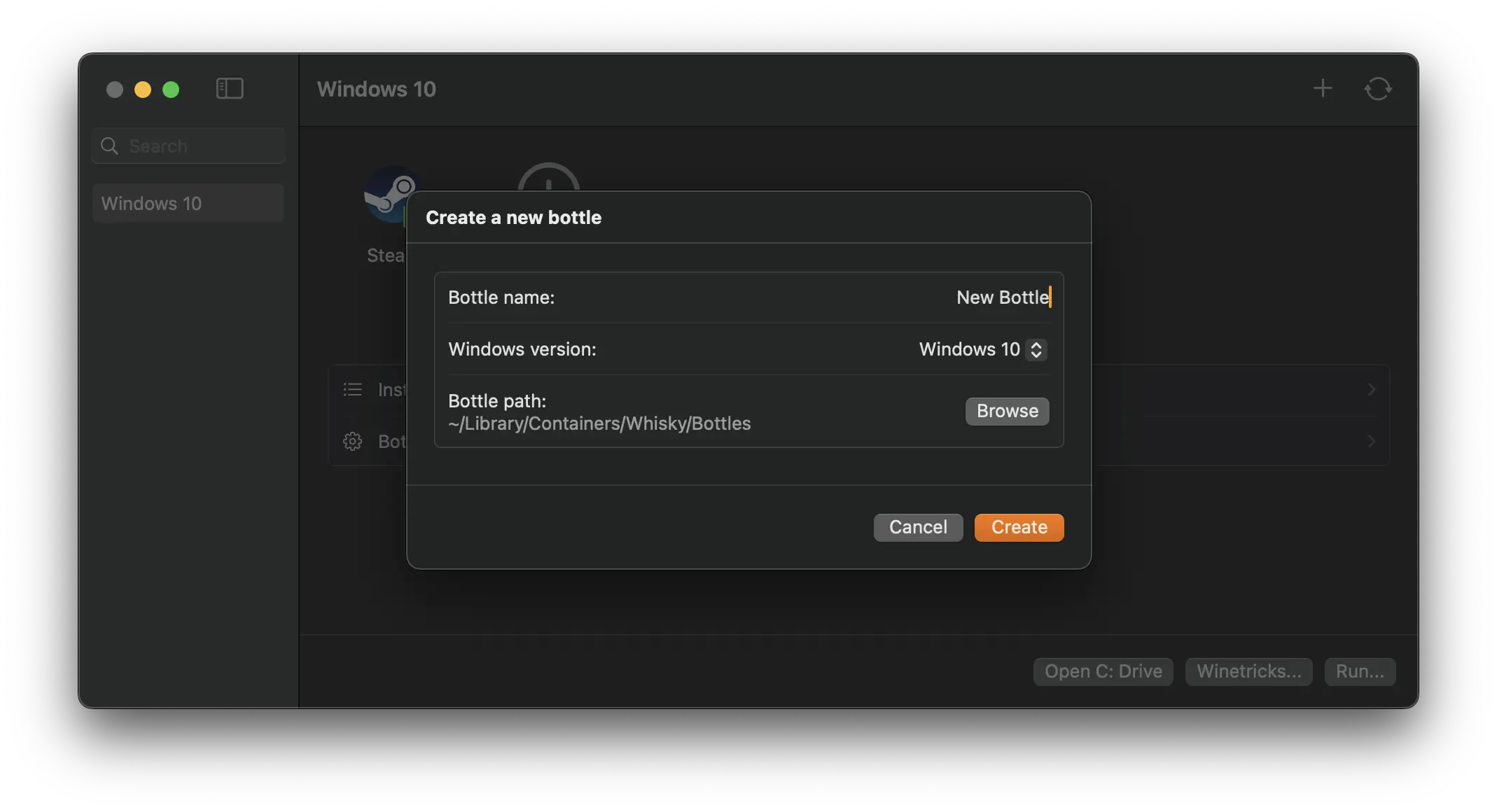
6 Step 4: Create Your First Bottle
Before installing a Windows program, you need to create a bottle. A bottle is a separate Windows environment where Whisky stores installed apps, settings, and related files.
In Whisky’s main window, find the option to create a new bottle. Select it to open the bottle setup screen.
Enter a name that helps you identify its purpose. For example, you can call it Steam Games if you plan to install Steam and use it for your PC games.
Select the Windows version for the bottle. The original guide recommends Windows 10 as a safe default for a general Steam setup.
Confirm your selections and let Whisky create the environment. Wait until the process is complete before installing Windows applications.
For most users who want to try Steam games, one bottle dedicated to Steam is a straightforward starting point. You can create additional bottles later if you want to keep separate applications or configurations apart.
7 Step 5: Install Steam in Whisky
After creating your bottle, the next step is to install the Windows version of Steam inside it. You will need the Windows Steam installer, not the regular macOS Steam app.
Open the official Steam website in your browser and download the Windows installer. Make sure you select the Windows download.
Return to Whisky and select the bottle you created for Steam. This is the Windows environment where the installer will run.
Use Whisky’s option to run an executable or open the installer through the selected bottle. Browse to the Windows Steam setup file you downloaded and start it.
Complete the installation prompts just as you would on a Windows PC. When the installer finishes, launch Steam from inside the same bottle.
Enter your Steam account details and wait for the client to finish loading. Once you’re signed in, your library should appear.
Performance note: Steam’s interface may feel slow or less responsive while running through compatibility software. This does not necessarily mean that every game will perform the same way. Game performance varies considerably by title and Mac hardware.
8 Step 6: Download and Run a Windows Game
With Steam installed, you can browse your library and try a compatible Windows game. Before downloading a game, check whether other users have reported that it works with Wine-based compatibility tools.
Search for the game on ProtonDB and review reports from other players. Gold or Platinum ratings can be a useful indication that a game works well in similar compatibility environments, although they do not guarantee that it will work in Whisky on your Mac.
Open your Steam Library or visit the Steam Store and select a game you want to try. Check its system requirements and make sure you have enough free storage.
Click Install and allow Steam to download the game files into your bottle. Larger games may take some time, depending on your internet connection.
When the download and installation are complete, click Play in Steam. The game will attempt to launch through Whisky’s compatibility environment.
Not every Windows game will work. Titles that rely on certain anti-cheat systems often fail to run through Wine-based solutions, and some games may require specific settings or may not be compatible at all.
Important: A Gold or Platinum ProtonDB rating is a helpful reference, not a promise of compatibility. Whisky and Proton are not identical environments, and results can differ depending on the game version, macOS release, and Mac model.
9 Troubleshooting Tips
If a game does not launch or behaves unexpectedly, try these basic checks before reinstalling everything.
The Game Does Not Start
Check the game’s compatibility reports on ProtonDB and look for launch options or configuration tips reported by other users. Some titles may simply be incompatible with Wine-based tools.
Try a Different Windows Version
If a program does not work with your current bottle configuration, you can try changing the bottle’s Windows version if that option is available. Make a note of your original settings before experimenting.
Steam Feels Slow
The Steam client interface can be sluggish when it runs through translation layers. Give it time to load, and remember that launcher responsiveness does not always reflect in-game performance.
The Game Stops Working After a macOS Update
Because Whisky is no longer actively maintained, a new macOS version may introduce problems that cannot be fixed through an official Whisky update. Check the project’s available information and consider an actively maintained alternative if compatibility is important to you.
The Game Uses Anti-Cheat
Games that depend on kernel-level or unsupported anti-cheat systems generally will not work through Wine-based compatibility methods. This is a limitation of the compatibility approach, not necessarily a problem with your bottle configuration.
10 Should You Still Use Whisky?
Whisky remains an interesting free option if you want to experiment with Windows games on an Apple Silicon Mac. Its graphical interface makes it easier to create bottles and run Windows installers without manually configuring every component.
However, the lack of active development is an important limitation. If a future macOS update, game update, or compatibility change causes a problem, there may be no official fix. For that reason, Whisky is best approached as a tool to try with games that are already known to work, rather than a solution you can rely on for every new PC release.
| Option | Best For |
|---|---|
| Whisky | Users who want a free way to experiment with compatible Windows games on Apple Silicon Macs and understand that the project is discontinued. |
| CrossOver | Users who want an actively developed compatibility product, ongoing updates, and support. A free trial is available from CodeWeavers. |
| GeForce NOW | Users who prefer cloud gaming for supported titles rather than installing and running Windows games locally. |
Our recommendation: If you already have Whisky installed and your games are working, you can continue using it with the understanding that future compatibility is uncertain. If you’re setting up a Mac gaming environment from scratch and want ongoing updates, compare it with CrossOver before deciding.
11 Frequently Asked Questions
Is Whisky free to use?
Yes. Whisky is a free, open-source application. Its main advantage is that it provides a graphical interface for setting up Wine-based Windows environments on supported Macs.
Does Whisky work on Intel Macs?
No. The guide specifies that Whisky is designed for Apple Silicon Macs, starting with M1 and newer chips. Intel Mac users should look at other compatibility options.
Is Whisky still being maintained?
No. The developer has ended active development and recommends CrossOver. Whisky may continue to work for some games, but future macOS and game updates can break compatibility without an official fix.
What is a bottle in Whisky?
A bottle is a self-contained Windows environment that stores its own applications, files, and settings. You can create a bottle for Steam and install multiple games inside it, or create separate bottles for different purposes.
Which Windows version should I choose for a bottle?
The original guide recommends Windows 10 as a safe default for a general Steam bottle. The best setting can vary depending on the application or game you’re trying to run.
Can I install Steam using Whisky?
Yes. Download the Windows Steam installer, open the bottle you created in Whisky, and run the installer inside that bottle. You can then sign in to Steam and install compatible games.
Will every Windows game work with Whisky?
No. Compatibility varies by game. Check reports on ProtonDB before installing, and be aware that games using unsupported anti-cheat systems generally will not work through Wine-based solutions.
Is Whisky better than CrossOver?
Whisky is free, but it is no longer actively maintained. CrossOver is an actively developed commercial option with ongoing updates and support. Choose based on your budget, the games you want to play, and how important continued compatibility is to you.
Can I use Whisky on the latest version of macOS?
Compatibility with newer macOS releases is not guaranteed because Whisky is no longer actively maintained. Check current reports before updating macOS if you depend on Whisky for particular games.
Ready to Try Windows Games on Your Mac?
Whisky offers a simple way to experiment with Windows games on Apple Silicon Macs. Download it from the official Whisky GitHub repository, create a bottle, and start with a game that has positive compatibility reports. Keep in mind that the project is discontinued, so results may change as macOS and games are updated.
If you want an actively maintained alternative, take a look at CrossOver and compare its compatibility with the games you want to play.
Explore CrossOverDisclaimer: This article is for informational and educational purposes only. Whisky is a third-party, open-source application and is no longer actively maintained. Compatibility, performance, download availability, and installation steps may change. We are not affiliated with or endorsed by the developers of Whisky, Apple, Valve, or CodeWeavers. Windows, Steam, macOS, and all related names and trademarks belong to their respective owners. Always download software from trusted sources and review the relevant terms before installing third-party applications.