Want to run Windows applications and games on your MacBook? CrossOver makes it possible without installing a full copy of Windows. In this tutorial, I’ll show you how to download, install, and set up CrossOver on Mac, including Apple Silicon Macs with M1, M2, M3, M4, and newer chips.
1 What Is CrossOver for Mac?
CrossOver is an application developed by CodeWeavers that allows you to run many Windows programs on macOS.
Unlike traditional virtual machines, CrossOver uses Wine-based compatibility technology to translate Windows application instructions so they can work with macOS. This means you don’t need to install a complete Windows operating system or purchase a separate Windows license just to use CrossOver.
You can use CrossOver to run different types of Windows software, including:
- Windows productivity applications.
- Windows utilities and desktop programs.
- PC games and game launchers.
- Some older Windows applications.
- Software that doesn’t have a native macOS version.
CrossOver supports both Intel-based Macs and Apple Silicon Macs, including M1, M2, M3, M4, and newer models, subject to the requirements of the CrossOver version you install.
2 System Requirements
Before installing CrossOver, make sure your Mac meets the requirements.
| Requirement | Details |
|---|---|
| Mac processor | Intel or Apple Silicon |
| Apple Silicon | M1, M2, M3, M4, and newer supported chips |
| macOS | Must be supported by your CrossOver version |
| Storage | At least 1 GB for CrossOver, plus additional space for Windows applications |
| Internet | Required for downloading and installing software |
For the latest compatibility information, visit the official CodeWeavers website before downloading.
Check CrossOver System Requirements →
3 How to Download CrossOver on Mac
First, you need to download the CrossOver installer from the official CodeWeavers website.
Step 1: Visit the Official CrossOver Website
Open Safari, Google Chrome, or any web browser on your Mac.
Go to the official CodeWeavers download page:
Download CrossOver for MacMake sure you’re downloading the macOS version, not the Windows or Linux version.
Step 2: Download the Free Trial
On the download page, find the CrossOver Mac download option.
Enter your name and email address if requested, then click the download button to get the installer.
CrossOver offers a 14-day fully functional trial, so you can test the software before purchasing a license.
Step 3: Locate the Downloaded File
Once the download is complete, open Finder and go to your Downloads folder.
You should see a ZIP file containing the CrossOver application.
4 How to Install CrossOver on Mac
Now that you’ve downloaded CrossOver, let’s install it on your Mac.
Step 1: Extract the ZIP File
Open your Downloads folder and double-click the downloaded CrossOver ZIP file.
macOS will automatically extract the archive and create the CrossOver application.
Step 2: Open CrossOver
Double-click the CrossOver application to launch it.
If macOS asks whether you want to move CrossOver to the Applications folder, select Move to Applications Folder.
This keeps CrossOver together with your other installed Mac applications and makes it easier to find later.
Step 3: Wait for CrossOver to Launch
After moving the application, CrossOver should open automatically.
If it doesn’t, open Finder, select Applications, and double-click CrossOver again.
5 How to Open and Set Up CrossOver
When you open CrossOver for the first time, you may see a welcome or trial registration window.
If you haven’t purchased a license yet, select Try Now to start using the free trial.
The trial gives you access to the full CrossOver feature set for 14 days, allowing you to test compatible Windows applications and games.
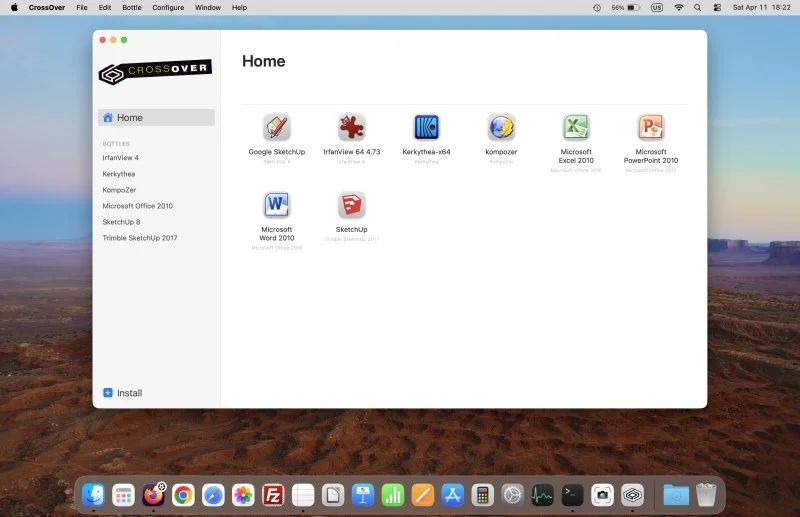
After entering CrossOver, you’ll see its main interface. From here, you can search for Windows applications, create bottles, and install compatible software.
6 How to Install Windows Applications Using CrossOver
Once CrossOver is ready, you can start installing Windows software.
Step 1: Open the Install Menu
In the CrossOver window, select the option to install a Windows application.
Step 2: Search for Your Windows Application
Use the search bar to find the Windows program you want to install.
For example, you can search for Steam, Microsoft Office, or another supported application.
Step 3: Select the Application
Click the application from the search results to view its installation details.
CrossOver may automatically select the required installer and dependencies for supported applications.
Step 4: Create or Select a Bottle
CrossOver uses separate Windows environments called bottles to organize installed applications.
Select an existing bottle or create a new one, depending on your needs and the application’s compatibility requirements.
Step 5: Install the Application
Review the installation settings and click Install.
Follow any additional instructions displayed by the Windows installer.
Once the installation finishes, you should see the application listed in CrossOver.
7 How to Activate CrossOver on Mac
The CrossOver trial is limited to 14 days. If you want to continue using the software after the trial ends, you’ll need to purchase a license.
After purchasing CrossOver from CodeWeavers, follow these steps:
- Open CrossOver on your Mac.
- Click the CrossOver menu in the macOS menu bar.
- Select Unlock CrossOver.
- Enter your CodeWeavers account email and password.
- Click Unlock to activate your license.
If you purchased CrossOver through a third-party seller and received an activation code, select the activation code option and follow the instructions.
You can also purchase a license directly from the official website:
8 Common CrossOver Installation Problems
If CrossOver doesn’t install or launch correctly, here are some things you can try.
CrossOver Won’t Open on Mac
- Make sure the download has finished successfully.
- Extract the ZIP file again if necessary.
- Move CrossOver to your Applications folder.
- Check whether your macOS version is supported.
- Download a fresh installer from the official CodeWeavers website.
CrossOver Download Is Not Working
- Check your internet connection.
- Try downloading the installer using another browser.
- Make sure you have enough free storage space.
- Visit the official download page again.
Windows Applications Are Not Installing
- Check whether the application is compatible with your CrossOver version.
- Make sure you have the correct Windows installer.
- Try creating a separate bottle for the application.
- Check whether additional dependencies are required.
CrossOver Is Running Slowly
- Close unnecessary applications running in the background.
- Make sure your Mac has enough available memory and storage.
- Check the compatibility settings for the application.
- Try a different bottle configuration if appropriate.
For more help, visit the official CodeWeavers support documentation:
9 Frequently Asked Questions
Is CrossOver free on Mac?
CrossOver is paid software, but CodeWeavers offers a 14-day fully functional free trial. After the trial expires, you’ll need a license to continue using it.
Does CrossOver work on Mac M1, M2, M3, M4, and M5?
Yes, CrossOver supports Apple Silicon Macs, including M-series processors, provided your macOS version meets the requirements of the CrossOver release you’re installing.
Do I need to install Windows to use CrossOver?
No. CrossOver uses compatibility technology to run supported Windows applications directly on macOS. You don’t need to install a full Windows operating system.
Can I play Windows games using CrossOver?
Yes, CrossOver can run many Windows games on Mac. However, compatibility depends on the individual game, graphics requirements, anti-cheat systems, and other technical limitations.
Is CrossOver better than Whisky?
It depends on what you need. CrossOver is a commercial product with official support and application installation profiles. Whisky was a free Wine-based option, but it is no longer actively maintained. Both have application compatibility limitations.
Can I uninstall CrossOver from my Mac?
Yes. You can remove the CrossOver application from your Applications folder. Keep in mind that your Windows applications and bottles may be stored separately, so deleting CrossOver does not necessarily remove all related data.
Does CrossOver work without an internet connection?
CrossOver itself can run installed applications offline in many cases. However, downloading installers, activating a license, and using online features may require an internet connection.
10 Final Thoughts
That’s how you can download and install CrossOver on your Mac in just a few minutes.
With CrossOver, you can run many Windows applications and games on macOS without installing a full Windows operating system. It’s particularly useful for Apple Silicon MacBook users who want access to Windows software.
If you’re new to CrossOver, I recommend starting with the free 14-day trial and testing the applications you actually need before purchasing a license.
Ready to Run Windows Apps on Your Mac?
Download CrossOver from the official CodeWeavers website and start exploring Windows applications on your MacBook.
Download CrossOver Free TrialRelated Tutorials:
- How to Install Whisky on Mac
- How to Run Windows Games on Mac
- How to Install Steam on Mac
- CrossOver vs Whisky for Mac
Disclaimer: This article is for educational and informational purposes only. CrossOver is developed by CodeWeavers. We are not affiliated with or endorsed by CodeWeavers. Application and game compatibility may vary depending on your Mac hardware, macOS version, and CrossOver version.
Last updated: November 2026.