Real Racing 3 is one of the most visually impressive racing games ever made for mobile, developed by Firemonkeys Studios and published by Electronic Arts. It features over 250 officially licensed cars, iconic real-world tracks including Silverstone, Le Mans, and the Dubai Autodrome, and a multiplayer system that lets you race against the ghost data of real players worldwide. Since its launch in 2013, it has remained one of the top racing titles on both iOS and Android.
Playing Real Racing 3 on PC takes the experience to a completely different level. A larger screen lets you appreciate every detail of the car models and track environments, keyboard or controller input gives you far more precise steering than a phone touchscreen, and you never have to worry about your device running out of battery mid-race. Whether you’re on Windows 11/10 or a MacBook, this guide walks through every step — from picking the right emulator to getting on the track in under 10 minutes.
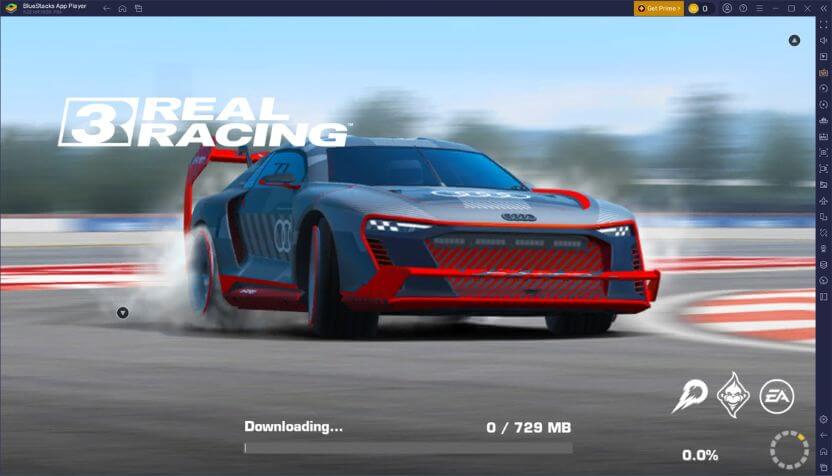
Your existing garage, car upgrades, and race progress carry over automatically when you sign in with your existing EA or Google Play account — nothing is lost in the switch.
1 System Requirements
Real Racing 3 is significantly more graphically demanding than most mobile games. Make sure your PC meets these requirements before installing an emulator to ensure a smooth experience.
| Component | Minimum | Recommended |
|---|---|---|
| OS | Windows 10 / macOS 11 Big Sur | Windows 11 / macOS 13 Ventura or later |
| CPU | Intel Core i5 / AMD Ryzen 5 | Intel Core i7 / Ryzen 7 or higher |
| RAM | 8 GB | 16 GB or more |
| GPU | NVIDIA GTX 750 / AMD RX 460 | NVIDIA GTX 1060 / AMD RX 580 or better |
| Storage | 8 GB free disk space | 16 GB+ free (SSD strongly preferred) |
| Internet | Stable broadband connection | 20+ Mbps for smooth multiplayer |
You must be an Administrator on your PC to install and run an Android emulator. If you’re on a company or school computer with restrictions, this may not work without IT approval.
2 How to Play Real Racing 3 on Windows 11/10
The best way to play Real Racing 3 on Windows is through an Android emulator. Here are the three top options — all free to use and trusted by millions of players worldwide:



Go to the official website at bluestacks.com and click “Download BlueStacks 5”. The installer is approximately 500 MB. Always download from the official site to avoid malware.
Run the downloaded BlueStacksInstaller.exe file. Click “Install Now” and follow the on-screen prompts. Installation takes 3–5 minutes. BlueStacks will launch automatically when done.
Once BlueStacks opens, sign in with your Google account to access the Play Store. If you don’t have one, create a free account at accounts.google.com.
Open the Google Play Store inside BlueStacks. In the search bar, type “Real Racing 3”. Select the game published by Electronic Arts — it should show 500M+ downloads and a 4.5+ star rating.
Click “Install” and wait for the download to complete. Real Racing 3 requires an additional in-game asset download of around 1.5–2 GB on first launch — keep a stable internet connection and let it finish fully before playing.
Click the keyboard icon on the right toolbar to open the Keymapping Tool. Assign A/D or Arrow keys for steering, W/S to accelerate and brake. Then go to Settings → EA Account inside the game to restore your existing garage and race progress.
Real Racing 3 has full gamepad support. Connecting an Xbox or PlayStation controller via USB or Bluetooth gives you analog stick steering and trigger-based throttle/brake — far more precise than keyboard arrows, especially in tight corners and during overtaking. BlueStacks detects most gamepads automatically without any extra configuration.
Visit ldplayer.net and download LDPlayer 9. It supports Android 9 and uses fewer system resources than BlueStacks — a solid choice if your PC has 8 GB RAM or a mid-tier GPU.
Run the installer and follow the setup wizard. After installation, LDPlayer opens automatically. Sign in to your Google account when prompted to access the Play Store.
Open the LD Store or Google Play Store inside LDPlayer. Search for “Real Racing 3” and tap Install. Allow the additional in-game assets to finish downloading on first launch before starting a race.
Use LDPlayer’s built-in Keyboard Mapping tool to assign steering, throttle, and braking to your preferred keys. Sign in with your EA account or Google Play Games inside Real Racing 3 to restore your progress, then hit the track.
Go to LDPlayer Settings → Display and set resolution to 1920×1080 at 240 DPI. Set FPS to 60 and renderer to OpenGL. Inside Real Racing 3, set graphics quality to High for the sharpest car models and track detail on a PC screen.
Go to mumuplayer.com and download MuMu Player 12 for free. Developed by NetEase and built on Android 12, it supports up to 120 FPS — making it one of the smoothest emulators available for a fast-paced game like Real Racing 3.
Run the installer and follow the setup wizard. MuMu Player launches automatically after installation. Sign in with your Google account when prompted to access the Google Play Store.
Open the Google Play Store inside MuMu Player. Search for “Real Racing 3” and tap Install. On first launch, wait for the game’s additional 1.5–2 GB of assets to finish downloading before starting your first race.
In MuMu Player’s display settings, set FPS to 120. Launch Real Racing 3 and sign in with your EA account to restore your garage and progress. Experience the smoothest car animations and track rendering available on any Android emulator.
If you have a dedicated GPU and 16 GB RAM, go with BlueStacks — it delivers the best visual quality and has the most mature keyboard and gamepad mapping setup. If your PC is more modest (8 GB RAM, integrated GPU), try LDPlayer for a lighter footprint. Choose MuMu Player 12 if your system can handle it and you want the highest possible frame rate.
3 How to Play Real Racing 3 on MacBook
Real Racing 3 runs great on Mac — whether you have an Intel Mac or an Apple Silicon Mac (M1/M2/M3/M4). Both emulator options below provide native builds for each chip type.
To check: click the Apple menu (🍎) → About This Mac. If it says “Intel”, you have an Intel Mac. If it says “Apple M1 / M2 / M3 / M4”, you have Apple Silicon. Both chips are supported by the methods below.
Visit bluestacks.com on your Mac. The website auto-detects your chip and offers the correct build — Intel or Apple Silicon. Click “Download BlueStacks”.
Open the downloaded .dmg file. Drag the BlueStacks icon into your Applications folder. Open BlueStacks from Applications or Launchpad to begin the initial setup.
macOS may block BlueStacks on first launch. Go to System Settings → Privacy & Security, scroll down, and click “Open Anyway” next to the BlueStacks warning. Then re-launch the app.
Sign in with your Google account inside BlueStacks. Open the Google Play Store, search for “Real Racing 3”, and tap Install. Let the in-game assets fully download on first launch.
Launch Real Racing 3 and sign in with your EA account to restore your existing garage, upgrades, and race history. Set up keyboard controls or connect a gamepad for the most precise steering on Mac’s larger display.
BlueStacks for Mac requires macOS 11 Big Sur or later. For M1/M2/M3/M4 Macs, always download the Apple Silicon build — running the Intel version under Rosetta will noticeably reduce graphics performance and increase battery usage.
Visit mumuplayer.com and download the Mac version of MuMu Player. It has a native Apple Silicon build specifically optimized for M-chip Macs and supports up to 120 FPS.
Open the downloaded .dmg file and drag MuMu Player to the Applications folder. If macOS blocks the app on first launch, go to System Settings → Privacy & Security → Open Anyway.
Launch MuMu Player and complete the initial Android setup — this typically takes 2–3 minutes on first run. Sign in with your Google account to access the Play Store.
Search for “Real Racing 3” in the Play Store and install the game. On first launch, wait for all in-game assets to download. Then sign in with your EA account to sync your garage, car upgrades, and race history across all devices.
Real Racing 3 saves your progress to your EA account. Log in with the same EA account on both your phone and the Mac emulator, and your entire garage — all cars, upgrades, R$, gold, and race history — will be perfectly in sync at all times.
4 Pro Tips for Best Performance
Optimize Your Setup for Real Racing 3
Real Racing 3 is one of the more demanding mobile games — these settings will help you get the smoothest, most visually impressive experience on your PC or Mac.
Real Racing 3 is a landscape game. In BlueStacks go to Settings → Display and set resolution to 1920×1080 at 240 DPI. On a PC screen, the difference in car model detail and track environment quality at full HD is dramatic compared to a phone display.
Real Racing 3’s high-fidelity visuals require more resources than most mobile games. Allocate at least 4 GB RAM and 4 CPU cores in your emulator’s performance settings to keep frame rates stable during busy race scenes with multiple cars on screen. In BlueStacks: Settings → Performance → Customize.
Inside Real Racing 3, go to Settings → Graphics and set quality to High or Ultra. On a PC screen the reflections on car bodywork, shadow rendering, and trackside detail are significantly sharper at higher settings — well worth enabling if your hardware can handle it.
Use the emulator’s keymapping tool to assign A/D or arrow keys to steer left/right, W to accelerate, S to brake, and a dedicated key for nitro. Keyboard steering is especially precise during technical corners and overtaking — far more consistent than mobile swipe controls.
Enabling hardware virtualization in your BIOS gives a significant performance boost to all Android emulators. Restart → enter BIOS (typically F2 or Del) → Advanced → CPU Configuration → enable Intel VT-x or AMD-V. Emulators start faster and run noticeably smoother with this enabled.
5 Frequently Asked Questions
🏎️ Ready to Race on the Big Screen?
Download BlueStacks, install Real Racing 3, and experience 250+ licensed cars on real-world tracks — in full 1080p, with precise keyboard or gamepad controls.
📌 This guide is published on capnamanh.com and updated for 2026. If you run into any issues setting up your emulator, drop a comment below and we’ll help you troubleshoot!