Shadow Fight 2 is a martial-arts fighting game developed by Nekki, blending fluid rotoscoped animation with real RPG-style gear progression. Instead of picking from a roster of fixed characters, you build your own fighter — collecting swords, armor, gloves, and magical gear that changes both your stats and your silhouette on screen. With 7 story chapters, a rotating Survival and Tournament mode, dozens of boss battles, and a deep enchantment system, it remains one of the most replayed fighting games on mobile as of 2026.
Playing Shadow Fight 2 on PC brings the combat to life in a way a phone screen simply can’t. A larger display makes every animation and combo easier to read, keyboard or gamepad controls give you far more precise timing for blocks, parries, and special moves than a touchscreen, and you never have to worry about your phone overheating or losing battery mid-boss-fight. Whether you’re on Windows 11/10 or a MacBook, this guide walks you through the full setup in under 10 minutes.
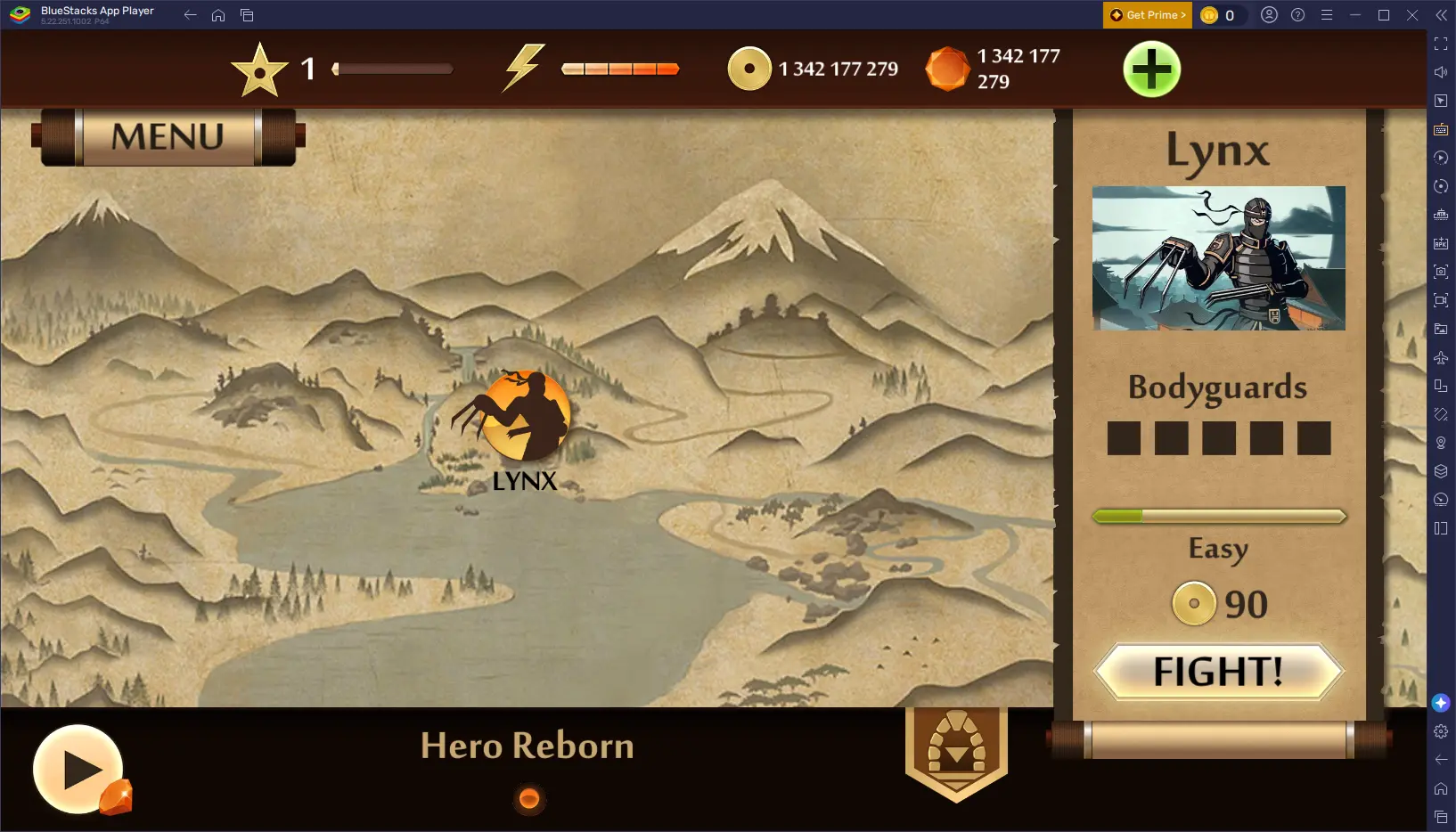
Your existing gear, gems, coins, and story progress carry over automatically when you sign in with the same account — nothing is lost in the switch from mobile to PC.
1 System Requirements
Shadow Fight 2’s detailed rotoscoped animation and particle-heavy special effects make it noticeably smoother with more headroom than the minimum. Check these requirements before installing an emulator.
| Component | Minimum | Recommended |
|---|---|---|
| OS | Windows 10 / macOS 11 Big Sur | Windows 11 / macOS 13 Ventura or later |
| CPU | Intel Core i3 / AMD Ryzen 3 | Intel Core i5 / Ryzen 5 or higher |
| RAM | 4 GB | 8 GB or more |
| GPU | Integrated graphics (Intel HD 4000+) | NVIDIA GTX 1050 / AMD RX 460 or better |
| Storage | 2 GB free disk space | 4 GB+ free (SSD preferred) |
| Internet | Required for install & account sync | Stable connection for Tournament mode |
You must be an Administrator on your PC to install and run an Android emulator. If you’re on a company or school computer with restricted permissions, installation may not be possible without IT approval.
2 How to Play Shadow Fight 2 on Windows 11/10
The best way to play Shadow Fight 2 on Windows is through an Android emulator. All three options below are free and trusted by millions of players worldwide.


Go to the official website at bluestacks.com and click “Download BlueStacks 5”. The installer is approximately 500 MB. Always download from the official site to avoid malware.
Run the downloaded BlueStacksInstaller.exe file. Click “Install Now” and follow the on-screen prompts. Installation takes 3–5 minutes. BlueStacks will launch automatically when done.
Once BlueStacks opens, sign in with your Google account to access the Play Store. If you don’t have one, create a free account at accounts.google.com.
Open the Google Play Store inside BlueStacks. In the search bar, type “Shadow Fight 2”. Select the game published by Nekki — look for the app with the shadow warrior icon and 100M+ downloads.
Click “Install” and wait for the download to complete. Shadow Fight 2 is a moderately sized game (around 250–300 MB, plus extra data on first launch) — make sure you have a stable internet connection before starting.
Click the keyboard icon on the right toolbar to open the Keymapping Tool. Assign A/D for movement, separate keys for punch, kick, block, and jump, and a key for special moves. Sign in with your Google Play Games account inside the game to restore your gear and story progress.
Shadow Fight 2 responds well to controller input. Connecting an Xbox or PlayStation controller via USB or Bluetooth lets you chain punches, kicks, and blocks with much finer timing than a keyboard — especially useful in Survival mode and against late-game bosses. BlueStacks detects most controllers automatically without extra configuration.
Visit ldplayer.net and download LDPlayer 9. It runs on Android 9 and uses fewer system resources than BlueStacks — a solid choice if your PC has 4–8 GB RAM or integrated graphics.
Run the installer and follow the setup wizard. After installation, LDPlayer opens automatically. Sign in to your Google account when prompted to access the Play Store.
Open the LD Store or Google Play Store inside LDPlayer. Search for “Shadow Fight 2” and tap Install. Allow a few minutes for the download and first-time asset loading.
Use LDPlayer’s built-in Keyboard Mapping editor to assign movement, attacks, block, and special moves to your preferred keys. Connect a gamepad for tighter combo timing, then sign in with your Google account inside the game to restore your gear.
Go to LDPlayer Settings → Display and set the resolution to 1920×1080 at 240 DPI. Set FPS to 60 and renderer to OpenGL. This keeps the rotoscoped fight animations crisp and readable, which matters a lot when reacting to enemy attack windups.
Go to mumuplayer.com and download MuMu Player 12 for free. Built on Android 12 by NetEase, it supports up to 120 FPS — making Shadow Fight 2’s combo animations the smoothest they can possibly look on an emulator.
Run the installer and follow the on-screen setup. MuMu Player launches automatically after installation. Sign in with your Google account when prompted to access the Google Play Store.
Open the Google Play Store inside MuMu Player. Search for “Shadow Fight 2” and tap Install. The download should only take a couple of minutes on a normal connection.
In MuMu Player’s display settings, set FPS to 120. Launch Shadow Fight 2 and sign in with your Google account to restore your gear, gems, and story chapter progress. Boss fight animations have never looked this fluid on an emulator.
If you want the most precise keymapping for combos and blocks, go with BlueStacks — it has the most complete control configuration tools. If your PC is more modest (4 GB RAM, integrated GPU), try LDPlayer for a lighter footprint. Choose MuMu Player 12 if you want to push the frame rate as high as possible for the smoothest fight animations.
3 How to Play Shadow Fight 2 on MacBook
Shadow Fight 2 runs well on Mac — whether you have an Intel Mac or an Apple Silicon Mac (M1/M2/M3/M4). Both emulator options below offer native builds for each chip type.
To check: click the Apple menu (🍎) → About This Mac. If it says “Intel”, you have an Intel Mac. If it says “Apple M1 / M2 / M3 / M4”, you have Apple Silicon. Both chips are supported by the methods below.
Visit bluestacks.com on your Mac. The website auto-detects your chip and offers the correct build — Intel or Apple Silicon. Click “Download BlueStacks”.
Open the downloaded .dmg file. Drag the BlueStacks icon into your Applications folder. Open BlueStacks from Applications or Launchpad to begin the initial setup.
macOS may block BlueStacks on first launch. Go to System Settings → Privacy & Security, scroll down, and click “Open Anyway” next to the BlueStacks warning. Then re-launch the app.
Sign in with your Google account inside BlueStacks. Open the Google Play Store, search for “Shadow Fight 2”, and tap Install.
Open Shadow Fight 2 from the BlueStacks home screen. Sign in with your Google account inside the game to restore all your gear, gems, coins, and story chapter progress. Set up keyboard controls or connect a gamepad to start fighting on your Mac’s big screen.
BlueStacks for Mac requires macOS 11 Big Sur or later. For M1/M2/M3/M4 Macs, always download the Apple Silicon build — running the Intel version under Rosetta will noticeably reduce performance and increase battery usage.
Visit mumuplayer.com and download the Mac version of MuMu Player. It has a native Apple Silicon build optimized for M-chip Macs and supports up to 120 FPS.
Open the downloaded .dmg file and drag MuMu Player to the Applications folder. If macOS blocks the app on first launch, go to System Settings → Privacy & Security → Open Anyway.
Launch MuMu Player and complete the initial Android setup — this typically takes 2–3 minutes on first run. Sign in with your Google account to access the Play Store.
Search for “Shadow Fight 2” in the Play Store and install the game. Launch it and sign in with your Google account to sync your gear, gems, and coins. Enable 120 FPS in MuMu’s settings for the smoothest possible fight animations on Mac.
Shadow Fight 2 saves your progress through your Google Play Games account. Log in with the same account on both your phone and the Mac emulator, and your entire gear collection — weapons, armor, gems, and story progress — will be perfectly in sync at all times.
4 Pro Tips for Best Performance
Optimize Your Setup for Shadow Fight 2
Get the most responsive and smooth Shadow Fight 2 experience on your PC with these settings and tips:
In BlueStacks go to Settings → Display and set the resolution to 1920×1080 at 240 DPI. Shadow Fight 2’s rotoscoped fight animations and enemy attack tells are much easier to read at full HD on a PC screen compared to a mobile display.
Shadow Fight 2 isn’t especially resource-heavy, but boss fights with heavy particle effects can still stutter on default settings. Allocate at least 2 GB RAM and 2 CPU cores in your emulator’s performance settings. In BlueStacks: Settings → Performance → Customize.
Avoid stacking punch, kick, and block onto keys that are hard to reach together. In BlueStacks’ Keymapping Tool, spread movement, punch, kick, block, jump, and special move across keys you can hit quickly in sequence — this makes landing full combos far more consistent than the touchscreen original.
Before jumping into Survival or Tournament mode, spend a few minutes in a story fight getting used to your new keyboard or gamepad layout. Combo timing that felt natural on touchscreen often needs re-learning with physical buttons.
Enabling hardware virtualization in your BIOS gives a significant performance boost to all Android emulators. Restart → enter BIOS (typically F2 or Del) → Advanced → CPU Configuration → enable Intel VT-x or AMD-V. This helps keep frame timing consistent during fast combo exchanges.
5 Frequently Asked Questions
⚔️ Ready to Fight on the Big Screen?
Download BlueStacks, install Shadow Fight 2, and experience every combo, block, and boss battle on a full PC screen — with keyboard or gamepad controls.
📌 This guide is published on capnamanh.com and updated for 2026. If you run into any issues setting up your emulator, drop a comment below and we’ll help you troubleshoot!