Looking for EZVIZ Studio for PC? EZVIZ Studio is desktop software for Windows that lets you access compatible EZVIZ security cameras from your computer. Depending on your camera model and network setup, you may be able to view live footage, play back recordings, and access additional device options.
In this guide, you’ll learn where to download EZVIZ Studio, how to install it on a Windows PC, how to sign in, and what to check if your camera does not appear. To avoid unofficial or modified installers, use the official EZVIZ support website.
1 What Is EZVIZ Studio for PC?
EZVIZ Studio is a Windows desktop application designed to help users access supported EZVIZ cameras from a computer. It can be useful if you prefer a larger screen for monitoring your home, office, shop, or other property.
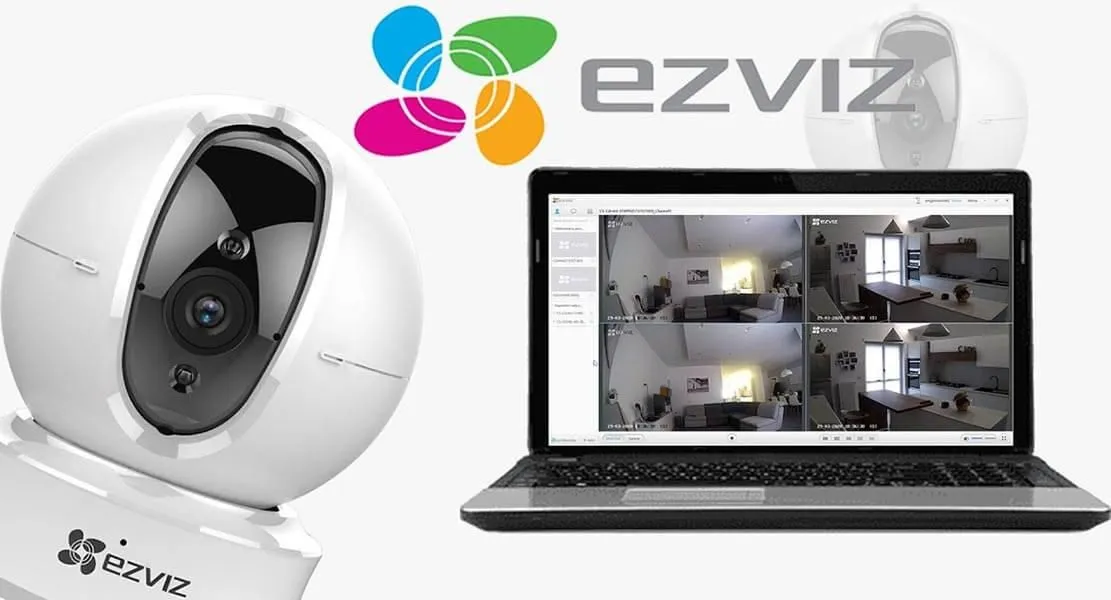
Depending on your device and configuration, EZVIZ Studio may provide features such as:
- Viewing live camera footage on a Windows PC.
- Accessing playback for recordings supported by your camera.
- Viewing devices associated with your EZVIZ account.
- Accessing certain device or advanced settings when supported.
- Exporting recordings from an SD card on supported models and configurations.
Not every EZVIZ camera supports every desktop feature. If you cannot find a setting or playback option, check the documentation for your specific model and the official EZVIZ support articles.
2 What You Need Before Installation
Before downloading EZVIZ Studio for PC, prepare the following items to make setup easier.
| Requirement | Why It Matters |
|---|---|
| Windows PC | EZVIZ Studio is listed by EZVIZ as Windows PC software. |
| Internet connection | Needed to download the installer and sign in to online services. |
| EZVIZ account | Use the account associated with your camera or device. |
| Configured EZVIZ camera | Your camera should be powered on and set up according to its product instructions. |
| Same local network (for LAN features) | Some local discovery or advanced functions require the PC and camera to be on the same LAN. |
If your camera has not been configured yet, set it up using the EZVIZ mobile app and the instructions for your model before troubleshooting the PC software.
3 How to Download EZVIZ Studio for PC
The safest way to get EZVIZ Studio is through the official EZVIZ support or download center. The download center lists EZVIZ PC Studio Software under software downloads.
- Open the official EZVIZ Download Center.
- Look under the software or firmware downloads section for EZVIZ PC Studio Software or Windows PC Software.
- Choose the relevant download option for EZVIZ Studio.
- Wait for the download to finish. If the website asks you to select a country or region, follow the on-screen instructions.
- Locate the downloaded installer in your browser’s Downloads folder.
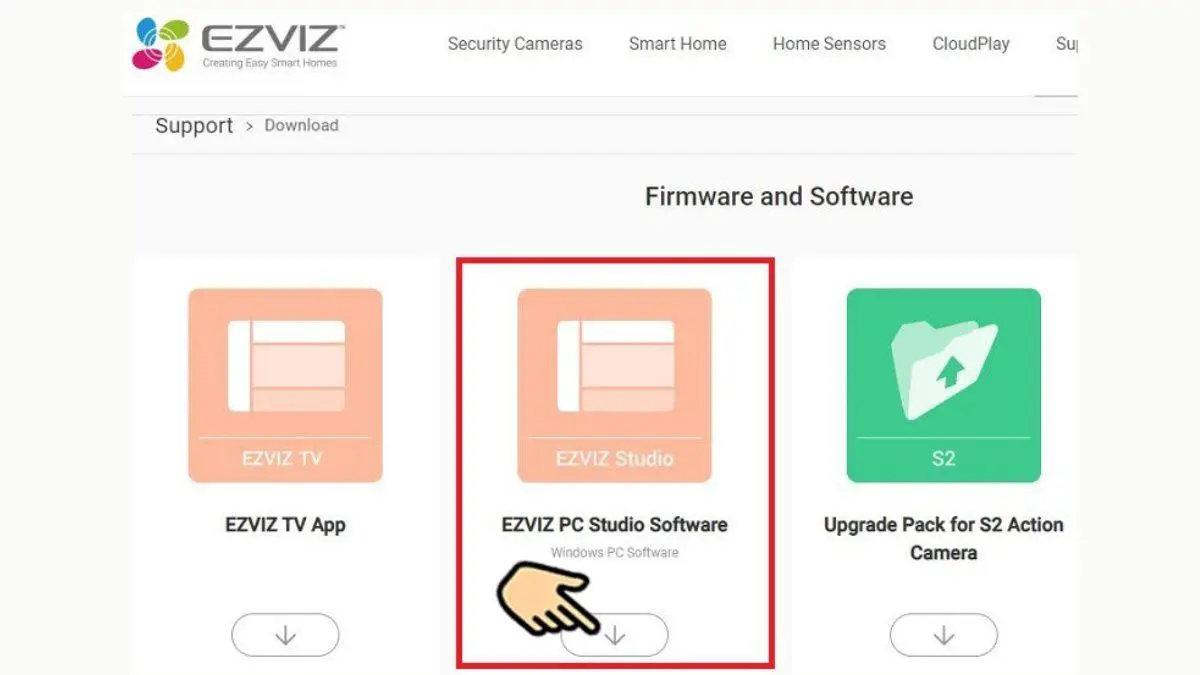
Do not download installers from unknown file-sharing websites or third-party download pages when an official source is available. If the official page changes or the download is unavailable in your region, contact EZVIZ support rather than using a repackaged installer.
4 How to Install EZVIZ Studio on Windows
After downloading the installer, follow these steps to install EZVIZ Studio on your computer.
- Open the folder where your browser saved the EZVIZ Studio installer.
- Double-click the installer file to start the setup process.
- If Windows displays a User Account Control prompt, check that the installer came from the official EZVIZ source before allowing it to continue.
- Follow the installation wizard. Review each screen and accept the settings you want to use.
- Wait for the installation to complete.
- Launch EZVIZ Studio from the desktop shortcut or the Windows Start menu, if one was created.
The exact installer screens may differ between versions. If Windows blocks the installer or displays an error, note the complete message and check the official EZVIZ support resources.
5 Sign In to Your EZVIZ Account
Once EZVIZ Studio opens, sign in with the EZVIZ account associated with your devices.
- Open EZVIZ Studio on your Windows PC.
- Enter your registered account details on the sign-in screen.
- If the software asks you to choose a region, select the region associated with your account.
- Complete any additional verification requested by the application.
- Wait for the application to load your account or device list.
Check your account details and region selection. Never share your password or verification codes with anyone offering unofficial technical support.
6 Find and View Your EZVIZ Camera
After signing in, check whether your camera appears in the device list. The exact controls can differ between EZVIZ Studio versions.
- Make sure the camera is powered on and connected to the network.
- Confirm that the camera has already been configured and associated with the correct EZVIZ account.
- Check the device list in EZVIZ Studio.
- If the camera is listed, select it and open the live view option available in the software.
- If the camera does not appear, check the troubleshooting section below.
For local network features, connect your PC and camera to the same local network when required. A wired connection for the PC may improve network stability, depending on your router and setup.
EZVIZ support documents a “Devices on LAN” option for PC Studio in supported setups. Availability and menu names can vary by software version and device.
7 View Recorded Videos
If your camera supports playback through EZVIZ Studio, you can use the application to review recordings.
- Open EZVIZ Studio and select the camera you want to check.
- Open the live view page for that device.
- Look for the Gallery or playback control available in your version of the software.
- Select the relevant date or time, if prompted, and choose the recording you want to view.
Some models may support exporting recordings stored on an SD card through the PC software, but this is not available for every camera. EZVIZ’s support guidance describes a supported workflow through All Devices > Advanced Settings > Storage > File for specific configurations.
Your camera model, firmware, storage configuration, and software version may not support that feature. Check your model’s documentation before assuming the application is malfunctioning.
8 Troubleshooting Common Problems
| Problem | What to Try |
|---|---|
| EZVIZ Studio will not install | Download the installer again from the official EZVIZ site and check the Windows error message. Make sure the file has finished downloading. |
| Cannot sign in | Verify your account details and region. Check that the PC has an internet connection and that EZVIZ services are reachable. |
| Camera does not appear | Confirm that the camera is online, configured, and associated with the account you used to sign in. For LAN discovery, check that the PC and camera are on the same local network. |
| Live view will not load | Check the internet connection, restart the software, and confirm that the camera is online. Check EZVIZ support for any required video components or compatibility notes. |
| Playback is unavailable | Confirm that the camera has recordings and that the model supports playback through PC Studio. Check the storage device and date range. |
| Advanced Settings is missing | Some advanced options may be hidden or unavailable by default. Follow only the official EZVIZ instructions that apply to your software version and device. |
| Video stops after a few minutes | EZVIZ notes that some streaming routes may time out. If your device supports LAN Live View, consult the official guide for the relevant local-view settings. |
For model-specific instructions, use the official EZVIZ Support Center and search for your camera model or the exact error message.
9 Frequently Asked Questions
10 Conclusion
Downloading EZVIZ Studio for PC is straightforward when you use the official EZVIZ download center. Install the Windows software, sign in to the correct account, and check whether your compatible camera appears in the device list. Live view, playback, LAN discovery, and export options may vary by camera model and software version.
If you run into problems, consult the official EZVIZ support pages for your model before downloading software from another source.
Ready to Set Up EZVIZ Studio?
Get the PC software from EZVIZ’s official download center and use the support resources for your camera model.