Want to run the PC version of MetaTrader 4 or MetaTrader 5 on an Android phone without paying for a VPS or keeping a computer running? With a Windows compatibility layer such as Winlator, you can run the Windows version of MT4 or MT5 directly on a compatible Android device.
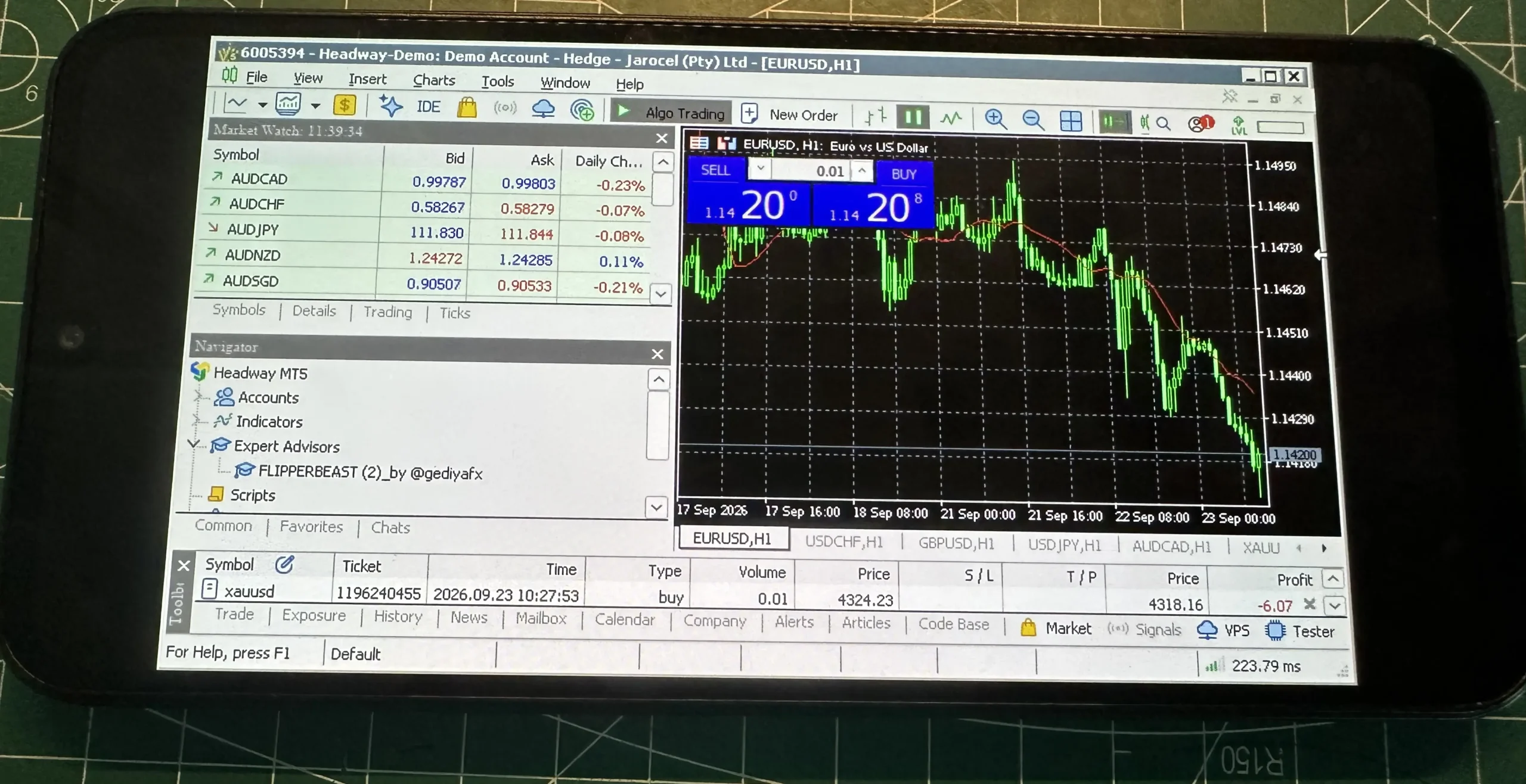
This setup can also let you use your custom Expert Advisors (EAs) and indicators, just like you would on a Windows PC. That makes it useful for traders who want to test strategies, monitor positions, or experiment with automated trading while away from their computer.
In this guide, we’ll walk through the complete setup — from installing Winlator and creating a container to installing MT4/MT5, adding custom .ex4 and .ex5 files, and keeping the emulator running in the background.
1 What You Need
Before getting started, make sure your Android phone has enough storage, a stable internet connection, and hardware capable of running Windows applications through an emulator.
| Requirement | Why You Need It |
|---|---|
| Android phone | Winlator runs Windows applications through a compatibility layer on Android |
| Stable internet | Required for downloading software and keeping MetaTrader connected to your broker |
| Free storage | Winlator, MT4/MT5 and custom files need additional storage space |
| Winlator | Provides the Windows environment needed to run the PC version of MT4/MT5 |
| MT4/MT5 Windows installer | Use the Windows .exe installer from your broker or another trusted source |
| Custom EA or indicator files | Optional — usually .ex4 for MT4 or .ex5 for MT5 |
| Mouse | Optional, but strongly recommended for a more PC-like MetaTrader experience |
The main idea is to run the Windows version of MetaTrader directly on your Android phone using Winlator. You don’t need to keep a separate Windows PC running or rent a VPS, but the phone itself must stay powered on and connected.
The key to running the PC version of MetaTrader on Android is Winlator. It provides a Windows-like environment that allows compatible Windows applications to run on your Android device.
- Open a browser on your Android phone and search for Winlator GitHub.
- Open the official Winlator GitHub releases page.
- Find the latest available release and download the appropriate
app-debug.apkfile. - Open your Android Downloads folder and tap the downloaded APK.
- Allow installation from unknown sources if Android asks for permission.
- Complete the installation and open Winlator.
Because you’re installing an APK outside Google Play, make sure you’re using a legitimate Winlator release. Avoid random APK websites or modified packages unless you can verify their source.
After Winlator is installed, you’ll need to create a container. Think of this as the Windows environment where MT4 or MT5 will be installed and run.
- Open Winlator on your Android phone.
- Tap the + icon to create a new container.
- Give the container a recognizable name, such as Trading.
- Choose a screen size or resolution that works well for your phone. A 16:9 configuration is a reasonable starting point.
- Open the Wine Configuration settings.
- Enable Mouse Override so the mouse cursor behaves more naturally inside the Windows environment.
- Save the configuration and tap the Play button to launch the container.
If MetaTrader feels slow, try lowering the container’s screen resolution. A smaller resolution such as 800×600 can reduce the processing load on some Android devices.
Before installing MetaTrader, it is a good idea to install the Windows compatibility components included in Winlator. These can help Windows applications that depend on certain Windows framework features.
- Launch your Trading container.
- Open the Start menu inside the Windows environment.
- Go to System Tools.
- Find and install Wine Gecko.
- Install Wine Mono as well.
- Return to the main container environment when the installation is complete.
Wine Gecko and Wine Mono provide compatibility for Windows applications that rely on web or .NET-related components. Installing them before MetaTrader can help avoid missing-component issues later.
Now you can install the PC version of MetaTrader. Download the Windows installer from your broker’s official website rather than using the Android mobile application.
- Open the browser on your Android phone.
- Visit your broker’s website and find the MT4 or MT5 Windows/PC installer.
- Download the appropriate
.exeinstaller to your Android phone. - Launch your Winlator Trading container.
- Open the D: (Download) drive inside Winlator.
- Locate the MetaTrader installer you downloaded.
- Double-tap the installer file to launch it.
- Follow the normal Windows installation prompts until the installation is complete.
- Launch MT4 or MT5 from inside the Winlator environment.
- Log in using your trading account credentials.
For the tutorial setup, you can use the Windows MT5 installer provided by your broker. If you’re using Headway, the PC platform download is available from their official platforms page.
Headway MT5 PC download: https://hw.online/platforms/
One of the main advantages of running the PC version of MetaTrader is that you can use custom Expert Advisors and indicators, provided they are compatible with the platform.
- Place your custom
.ex4files for MT4 or.ex5files for MT5 in your Android Downloads folder. - Open the Winlator file manager inside your trading container.
- Navigate to the D: Download drive where your Android Downloads files are accessible.
- Double-tap the required EA or indicator files to open or copy them into the MetaTrader environment.
- Open MetaTrader and check the Navigator panel.
- Locate your custom EA or indicator.
- Enable Algo Trading if you’re using an Expert Advisor.
- Drag the EA onto the desired chart and configure its settings.
MT4 generally uses .ex4 files, while MT5 uses .ex5. Make sure the EA or indicator was compiled for the same MetaTrader version you’re running.
7 Tips for a Better MT4/MT5 Experience
Running the PC version of MetaTrader on an Android phone can work well for certain use cases, but a few adjustments can make the experience much more practical.
- No monthly VPS subscription is required
- No separate Windows PC needs to stay powered on
- Can run compatible custom EAs and indicators
- Portable and can be used away from a desktop
- Can use an external mouse and keyboard
- Performance depends on your Android phone
- Battery optimization can stop background activity
- Internet connectivity depends on your phone
- The emulator can consume significant battery and RAM
- Not equivalent to guaranteed VPS uptime
Keep Winlator Running
If you’re using an EA that needs to remain active, avoid closing Winlator from the recent apps screen. Android may terminate resource-intensive applications when they’re running in the background.
Go to your phone’s battery settings and look for the Winlator app. If available, change its battery setting to Unrestricted or enable the equivalent option that allows background activity.
Use Split Screen
If your Android phone supports split-screen multitasking, you can keep Winlator running on one side while using another application on the other side. This can make it easier to monitor your account while the PC version of MetaTrader remains open.
Split-screen availability and controls vary by Android manufacturer. Look for the split-screen or multi-window option in your recent apps menu.
Connect a Mouse
A mouse can make a surprisingly big difference when using the desktop version of MetaTrader on a touchscreen. You can connect a Bluetooth mouse directly or use a USB mouse through an OTG adapter.
Once connected, tasks such as dragging an EA onto a chart, navigating menus, and interacting with charts become much closer to the normal PC experience.
Use a Stable Internet Connection
Because the MetaTrader terminal is running directly on your phone, the phone’s internet connection becomes an important part of the setup. If possible, use a stable Wi-Fi connection or reliable mobile data connection.
A phone-based emulator is not guaranteed to provide the same uptime as a dedicated VPS. Test your EA, connection, battery settings, and background behavior thoroughly before relying on the setup for unattended trading.
8 Troubleshooting Common Issues
| Problem | Possible Fix |
|---|---|
| Winlator closes in the background | Set Winlator battery usage to Unrestricted and enable background activity if your phone provides that option |
| MetaTrader runs slowly | Lower the container resolution, close unnecessary Android apps, and reduce the workload running inside MetaTrader |
| MT4/MT5 installer won’t open | Make sure you’re using the Windows .exe installer and try running it from the container’s D: Download drive |
| EA doesn’t appear in Navigator | Verify that the file matches the MetaTrader version and has been copied into the appropriate MQL4 or MQL5 directory |
| EA isn’t trading | Make sure Algo Trading is enabled and check the EA settings, account permissions, and connection status |
| Keyboard doesn’t appear | Swipe inward from the left side of the screen twice or multiple times, then select the Keyboard option from the side panel |
| Right-click doesn’t work | Use a two-finger tap on the touchscreen or connect an external mouse |
| Container crashes | Try a lower screen resolution and make sure your phone has enough available RAM and storage |
9 Frequently Asked Questions
.exe installer for MT4 or MT5 from your broker, then run the installer inside the Winlator container. Make sure you use the correct EA and indicator file format for the platform you’re running.
.ex4 files, while MT5 uses .ex5 files. Copy the appropriate files into the MetaTrader environment and check the Navigator panel afterward.
10 Conclusion
Running the PC version of MT4 or MT5 on an Android phone is possible using Winlator and a compatible Windows installer. Once everything is configured, you can access a desktop-style MetaTrader terminal without keeping a separate PC running or paying for a monthly VPS subscription.
The biggest thing to remember is that this isn’t a magic replacement for every VPS use case. Your phone still needs power, internet access, and enough resources to keep Winlator and MetaTrader running. But for testing strategies, monitoring trades, experimenting with custom EAs, or running MetaTrader while away from a computer, it can be a useful approach.
📈 Ready to Run MT4/MT5 on Android?
Set up Winlator, install the PC version of MetaTrader, and start testing your custom EAs and indicators directly from your Android phone.