Among Us is the social deduction game developed by Innersloth that turned quick group chats into full-blown “who’s the impostor” investigations. A small crew of Crewmates completes tasks aboard a ship, base, or airplane while one or more secret Impostors sabotage systems and eliminate players one by one — all while everyone argues their case in frantic emergency meetings.
While Among Us is famous as a mobile and browser game, there are actually three different ways to get it running on a PC or Mac: playing the free mobile version through an Android emulator like BlueStacks, or buying the official desktop release through Steam or the Microsoft Store. This guide covers all three, for both Windows 11/10 and macOS.
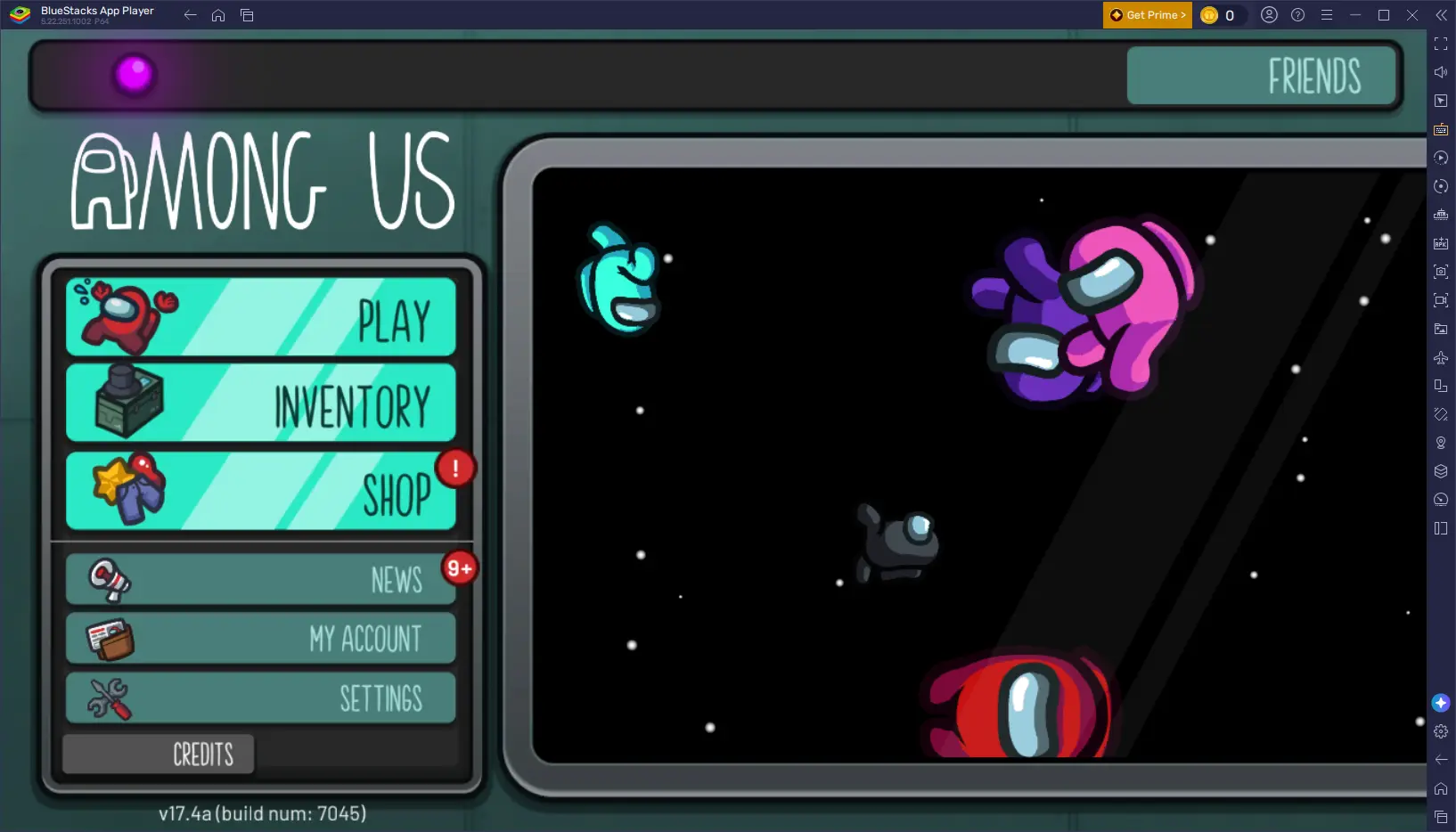
Only the BlueStacks method is free — it runs the mobile version of Among Us, which has always been free-to-play with optional cosmetic purchases. The Steam and Microsoft Store versions are the official native desktop releases and require a one-time purchase (a few dollars). All three are covered below so you can pick what fits your budget and preferred platform.
1 System Requirements
Among Us is a lightweight game with simple 2D graphics, so it runs comfortably on almost any PC or Mac made in the last decade. Here’s what you’ll need for each method.
| Component | Minimum | Recommended |
|---|---|---|
| OS | Windows 10 / macOS 11 Big Sur | Windows 11 / macOS 13 Ventura or later |
| CPU | Intel Core i3 / AMD equivalent | Intel Core i5 or higher |
| RAM | 4 GB | 8 GB or more |
| GPU | Integrated graphics | Any dedicated GPU (not required) |
| Storage | 1 GB free (game) + 5 GB (if using an emulator) | 2 GB+ free |
| Internet | Required for online multiplayer | Stable broadband for smooth lobbies |
You must be an Administrator on your PC to install BlueStacks, Steam, or apps from the Microsoft Store. If you’re on a company or school computer with restricted permissions, installation may require IT approval.
2 Free vs. Paid: Which Method Should You Pick?
All three methods let you play the same core game, but the experience — and the price — differs slightly. Here’s a quick side-by-side to help you decide:


If you just want to try Among Us without spending anything, go with BlueStacks. If you plan to play regularly and want the smoothest native experience, custom lobby mods, and community skins, Steam is worth the small one-time cost. Choose Microsoft Store instead if you also play on Xbox and want your progress and achievements synced.
3 How to Download Among Us on Windows 11/10
Go to the official website at bluestacks.com and click “Download BlueStacks 5”. Always download from the official site to avoid malware.
Run the downloaded BlueStacksInstaller.exe file, click “Install Now”, and follow the on-screen prompts. Installation takes 3–5 minutes, and BlueStacks launches automatically when done.
Once BlueStacks opens, sign in with your Google account to access the Play Store. If you don’t have one, create a free account at accounts.google.com.
Open the Google Play Store inside BlueStacks. Search for “Among Us” and select the official game published by Innersloth LLC.
Click “Install” and wait for the download to finish — Among Us is a small download at around 250 MB. Once installed, launch it directly from the BlueStacks home screen.
Click the keyboard icon on the right toolbar to open the Keymapping Tool. Assign WASD for movement, a key for using items/tasks, and a key for reporting bodies or calling emergency meetings.
In some regions or on certain BlueStacks setups, Among Us may not show up in the Play Store search results. If that happens, you can download the APK file directly from APKPure and install it manually. Just drag and drop the downloaded APK file onto the BlueStacks home screen, or use the “Install APK” icon on the sidebar to browse and select the file — BlueStacks will install it automatically.
Go to store.steampowered.com and click “Install Steam”. Run the installer and follow the setup wizard.
Open Steam and either sign in with an existing account or click “Create a Free Account” to make a new one.
In the Steam Store tab, search for “Among Us”. Select the official listing by Innersloth LLC.
Click “Add to Cart” or “Buy Now”, and complete checkout with your preferred payment method. Among Us is typically priced at just a few dollars, and Steam sales occasionally drop it even lower.
Once purchased, go to your Steam Library, click on Among Us, and select “Install”. After installation, click “Play” to launch the game directly with native keyboard and mouse controls.
The Steam version supports the Steam Workshop, giving you access to community-made maps, custom roles, and gameplay tweaks that aren’t available on the mobile or Microsoft Store versions.
Click the Start Menu and search for “Microsoft Store”, or open it directly if it’s pinned to your taskbar.
If you’re not already signed in with a Microsoft account, click your profile icon in the Store and sign in — this is the same account used for Xbox and Windows.
Type “Among Us” into the Microsoft Store search bar and select the official game by Innersloth LLC.
Click “Buy”, confirm the purchase with your linked payment method, then click “Install” once the purchase completes.
Once installed, click “Play” from the Microsoft Store or find Among Us in your Start Menu. Xbox achievements will track automatically if you’re signed into Xbox Live.
Regardless of which method you choose, Among Us supports full cross-platform play — Steam, Microsoft Store, and mobile/BlueStacks players can all join the same lobbies together.
4 How to Download Among Us on macOS
Among Us runs well on Mac — whether you have an Intel Mac or an Apple Silicon Mac (M1/M2/M3/M4). Below are the free and paid options for macOS.
To check: click the Apple menu (🍎) → About This Mac. If it says “Intel”, you have an Intel Mac. If it says “Apple M1 / M2 / M3 / M4”, you have Apple Silicon. Both are supported by the methods below.
Visit bluestacks.com on your Mac. The site auto-detects your chip and offers the correct build — Intel or Apple Silicon.
Open the downloaded .dmg file and drag the BlueStacks icon into your Applications folder. Open it from Applications or Launchpad to begin setup.
If macOS blocks BlueStacks on first launch, go to System Settings → Privacy & Security and click “Open Anyway” next to the warning, then relaunch the app.
Sign in with your Google account inside BlueStacks, open the Google Play Store, search for “Among Us”, and tap Install.
Open Among Us from the BlueStacks home screen. Set up keyboard controls through the Keymapping Tool, or leave the default touch controls if you prefer using your trackpad.
Go to store.steampowered.com and download the macOS version of the Steam client.
Open the downloaded .dmg file and drag Steam into your Applications folder. Launch it and sign in, or create a free Steam account.
Search for “Among Us” in the Steam Store, select the official listing by Innersloth LLC, and complete the purchase.
Go to your Library, click Among Us, then click “Install”. Once done, click “Play” to launch the native Mac version.
The Microsoft Store is a Windows-only platform, so Mac users don’t have that option. BlueStacks (free) and Steam (paid) cover both budget and native-performance preferences on macOS.
5 Tips for the Best Among Us Experience on PC
Among Us is best played with a group using a third-party voice chat app like Discord during meetings and free chat — it makes accusations, alibis, and arguments far more fun and immediate than typing.
If you’re using BlueStacks, put your most-used actions — using a task, reporting a body, and opening the map — on keys close to your movement keys so you can react quickly during tense moments.
Innersloth regularly ships new maps, roles, and cosmetics. Keeping your platform of choice updated ensures you don’t get stuck unable to join lobbies running a newer game version.
If you bought the Steam version, browse the Steam Workshop for community mods that add new roles, maps, or gameplay twists — a great way to keep long-time players engaged.
6 Frequently Asked Questions
🚀 Ready to Find the Impostor?
Pick a free or paid method above and you’ll be in your first lobby in just a few minutes.
📌 This guide is published on capnamanh.com and updated for 2026. If you run into any issues during setup, drop a comment below and we’ll help you troubleshoot!