Facebook doesn’t give you a built-in “Download” button for most videos — no matter how good the Reel or clip is, the app expects you to just watch it and move on. But you don’t need any coding skill or extra software to save one for later.
The easiest fix is a free online tool called FB Video Grab — paste a link, pick a quality, and the video is on your device in seconds. This guide walks through exactly how to use it on PC/Mac and on Android/iPhone, plus how to grab a Live replay.
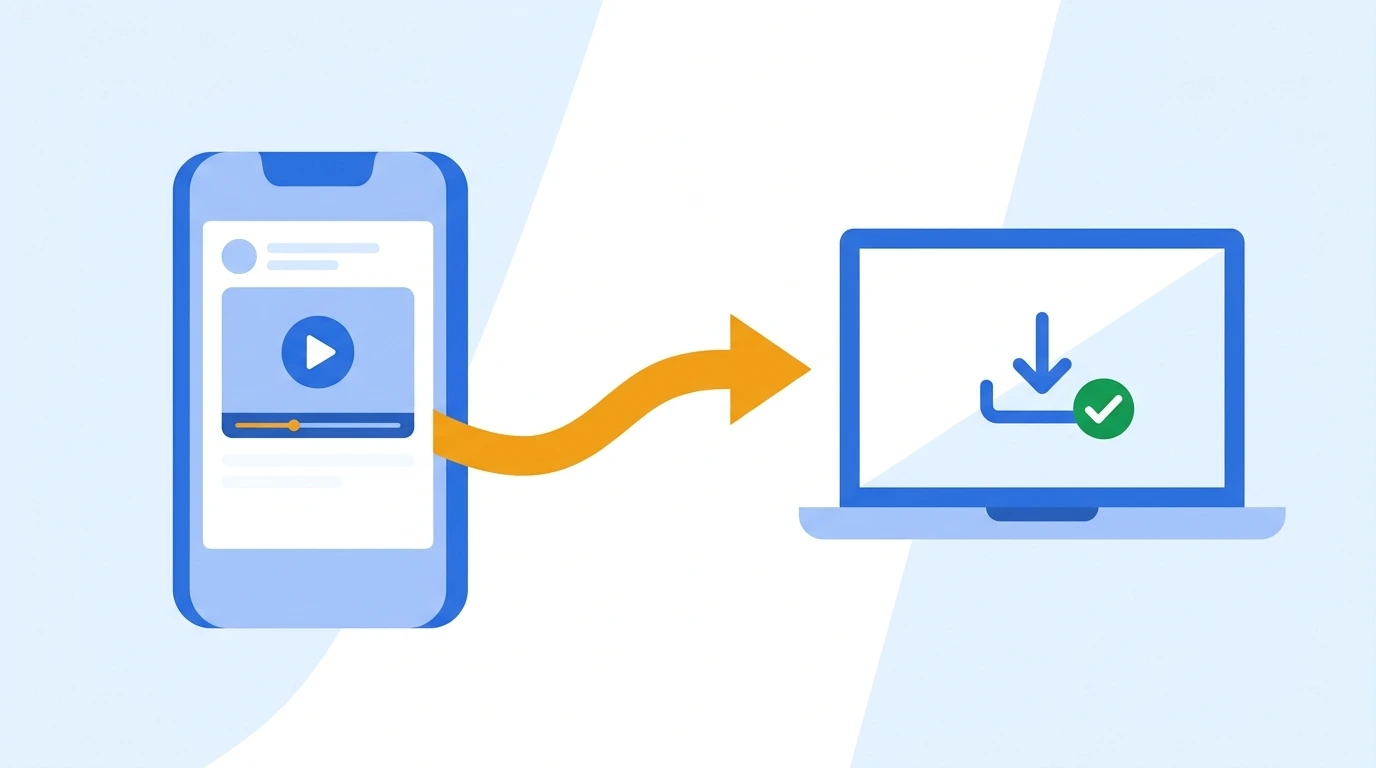
Copy the video link → paste into FB Video Grab → download
1 What You Need Before You Start
Downloading a Facebook video doesn’t take much — no special hardware, no paid software. Here’s the short list.
| Component | Minimum | Recommended |
|---|---|---|
| Device | Any smartphone or computer with a browser | Any recent Android, iPhone, PC, or Mac |
| Browser | Chrome, Safari, Firefox, or Edge | Latest version of Chrome or Safari |
| Account | None required | None required |
| Internet | Required to fetch the video | Stable Wi-Fi for HD or longer videos |
| Video privacy | Must be set to Public | Must be set to Public |
Every method in this guide — including FB Video Grab — only works with publicly visible Facebook videos. Content set to “Friends” or “Only Me” can’t be downloaded by design, since that would defeat the purpose of a privacy setting.
2 Which Method Should You Use?
All the options below get you the same result — a video file saved to your device — but they differ in convenience and how well they handle newer formats like Reels.


For regular videos and Reels, go straight to FB Video Grab — it’s the fastest option and works the same on phone or desktop. For a broadcast that already ended, check Facebook’s own Live download button first.
3 How to Download Facebook Videos on PC or Mac
Open the video on Facebook, click the three dots (⋯) on the post, and select Copy link. You can also copy the URL directly from the address bar once the video is open on its own page.

Open fbvideograb.com in your browser. No account or extension needed.
Paste the video link you copied into the input box on the page.

The tool reads the link and pulls up the available download options for that video.
Pick your preferred quality — HD, if the source supports it — and save the file. It will land in your browser’s default Downloads folder.

Some browsers open MP4 files directly instead of saving them. If that happens, right-click the download link and choose “Save link as…” to force it to save to your device.
4 How to Download Facebook Videos on Android & iPhone
The same FB Video Grab method works just as well on mobile — right in your phone’s browser, with no app to install.
Tap the three dots on the video or Reel and select Copy link.
Go to fbvideograb.com in Chrome, Safari, or your default browser.
Paste the link into the input box, tap Download, choose a quality, and save the video to your device.
Not every downloader handles the Reels format well. FB Video Grab detects Reels automatically and shows an HD option when the source supports it — making it the more reliable pick on phone.
5 How to Download a Facebook Live Video
For a Live broadcast that has already ended, Facebook often gives you its own download option directly.
Go to the Live tab and select the video you want.
Open the replay in fullscreen mode.
Tap the three dots and select Download video. The file saves automatically to your Downloads folder.
If Facebook doesn’t offer a download button for a specific Live replay, copy its link and run it through FB Video Grab instead.
6 Tips for Downloading Facebook Videos Smoothly
This is the single most common reason a download fails — private and friends-only videos won’t work with any of the methods above.
HD videos and longer clips can use a fair amount of mobile data — a Wi-Fi connection keeps things fast and avoids eating into your plan.
Since it works for videos, Reels, and Live replays alike, saving fbvideograb.com to your home screen or bookmarks means you won’t have to go searching for a tool again.
Stick to downloading public videos for personal viewing, archiving, or with the creator’s permission — that keeps things simple and respectful of other people’s content.
7 Frequently Asked Questions
🚀 Ready to Save Your Favorite Facebook Video?
Paste a link into FB Video Grab and you’ll have it saved in seconds — free, no signup.
📌 This guide is updated for 2026. If you run into any issues while downloading, drop a comment below and we’ll help you troubleshoot!