If you’ve ever needed to peek inside a macOS app’s preference file — to fix a corrupted setting, test how an app behaves with a specific default, or just understand what’s actually being stored — Prefs Editor is one of the simplest tools for the job. It’s a free, lightweight utility built by developer Thomas Tempelmann that gives you a clean graphical interface for viewing and editing any app’s preferences, without touching Terminal or opening the full Xcode suite.
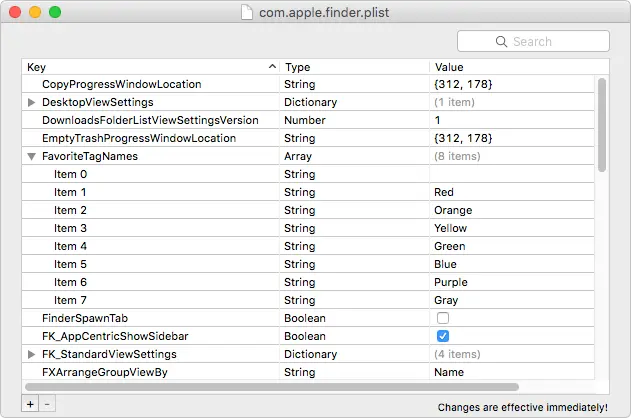
This guide covers what Prefs Editor actually does, how to install it, and how to use it to safely view and edit an app’s preference values on your Mac.
1 What Is Prefs Editor?
Every macOS app stores its settings — window positions, toggles, license flags, recently opened files, and more — in a preferences file (a .plist), usually tucked away inside ~/Library/Preferences. Apple used to ship a standalone Property List Editor for browsing these files, but that tool was folded into Xcode years ago, making it inconvenient to open just to check or tweak a single value.
Prefs Editor fills that gap. It works similarly to Xcode’s built-in plist editor, but rather than requiring you to locate and open a raw file, it can attach directly to any currently installed application’s live preferences and display them in an editable list — effectively acting as a GUI replacement for macOS’s defaults command-line tool.
2 App Specs at a Glance
| Detail | Info |
|---|---|
| Developer | Thomas Tempelmann (creator of Find Any File) |
| Price | Free — absolutely free, no license required |
| Size | ~14.5 MB |
| Architecture | Intel 64 Apple Silicon |
| OS Requirement | OS X 10.10 or later |
| Category | Developer Tools |
- Download the latest version of Prefs Editor from the developer’s official website or a trusted software directory like MacUpdate.
- Open the downloaded .zip file — it will extract automatically into the Prefs Editor app.
- Drag Prefs Editor into your Applications folder.
- Open it from Applications or Launchpad. If macOS shows a Gatekeeper warning since it’s downloaded from outside the App Store, go to System Settings → Privacy & Security and click Open Anyway.
Prefs Editor can open preference files two ways: by attaching to a running app directly, or by opening the raw .plist file from the ~/Library/Preferences folder.
Method 1: Open a Preference File Directly
- In Finder, click Go in the menu bar, then hold the Option key — this reveals the hidden Library folder in the menu.
- Open Library → Preferences.
- Find the preference file for the app you want to inspect (named something like
com.developer.appname.plist). - Right-click the file and choose Open With → Prefs Editor.
- The app’s stored keys and values will appear in an editable list.
Method 2: Attach to a Running App
- Open Prefs Editor directly from Applications.
- Use its app picker to select a currently running or installed application.
- Prefs Editor loads that app’s live preferences for viewing and editing.
Developers commonly use Prefs Editor to test how their own apps behave with specific UserDefaults values during development, while regular users often use it to fix a corrupted setting causing an app to crash, or to reset a stuck UI preference (like a hidden toolbar) without reinstalling the whole app.
Since Prefs Editor writes changes directly to an app’s real preference data, an incorrect edit can cause that app to misbehave or fail to launch. Consider duplicating the .plist file before making changes, so you can restore it if something goes wrong.
5 Prefs Editor vs. Similar Tools
A few other Mac utilities cover similar ground. Here’s how Prefs Editor compares:
- A completely free, no-frills plist/preferences editor
- The ability to attach directly to a running app
- A tiny, lightweight download (~14.5 MB)
- Copy Key/Copy Value shortcuts for quick edits
- PlistEdit Pro — more polished UI, paid license
- PrefEdit — similar free scope, different workflow
- Xcode’s built-in plist editor — if you already have Xcode installed for other development work
6 Frequently Asked Questions
7 Conclusion
Prefs Editor is a small utility that solves a very specific problem well: giving you fast, visual access to any Mac app’s stored preferences without launching Xcode or memorizing Terminal syntax. Whether you’re a developer testing UserDefaults values or just trying to fix a stuck app setting, it’s a free tool worth having in your utilities folder.
- Price: Completely free
- Best for: Developers and power users who need quick access to plist data
- Requirement: OS X 10.10 or later, Intel or Apple Silicon
🛠️ Ready to Try Prefs Editor?
Download it from the developer’s official site and start browsing app preferences in a couple of minutes.