IPTV Smarters Pro is one of the best free IPTV players that lets you stream live TV, movies, and series using an IPTV subscription. It does not provide content on its own.
Setting up IPTV Smarters Pro is easy. It works on Firestick, Android, Onn Stream, and has even a web version too. If you’re on Android/Google devices, skip the Play Store version — it just crashes too often. Using the Downloader method is the best option.
Now, to be clear, the app is 100% safe and legal. The only risk comes from the IPTV service you connect to, as not all providers are verified. That’s why using a VPN is important.
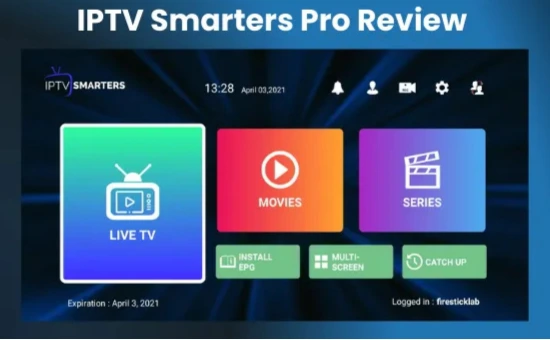
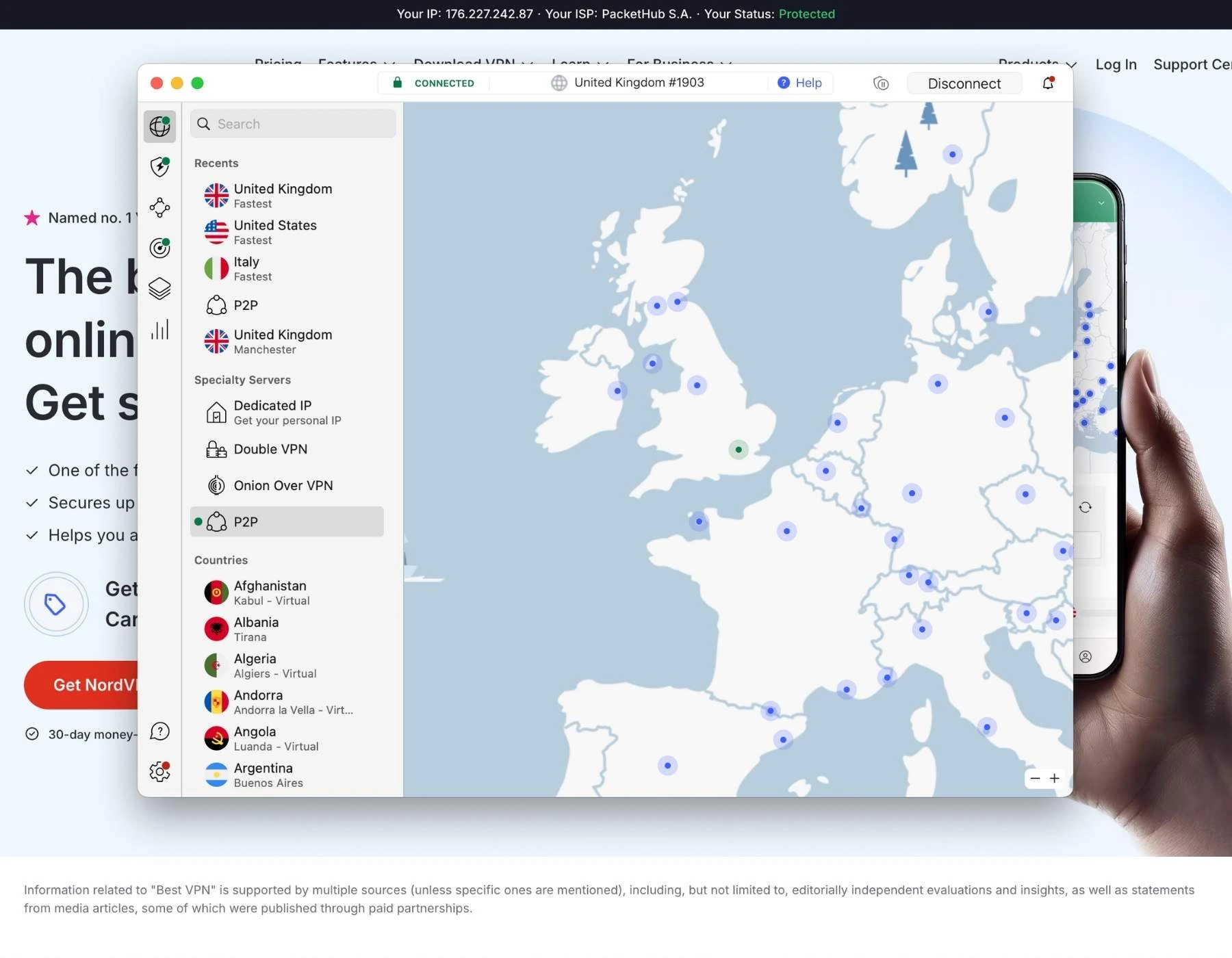
Using IPTV without a VPN can put you at Big Risk! Your ISP, government, and even IPTV providers can monitor your activity, throttle your speed, or block access altogether. Plus, without encryption, your data is exposed to hackers and third parties. Take back your privacy with NordVPN!
- How to Install IPTV Smarters Pro Using Downloader Code
- How to Set Up IPTV on IPTV Smarters Pro
- IPTV Smarters Pro Features
- IPTV Smarters Pros & Cons
- Is IPTV Smarters Pro Free?
- IPTV Smarters Pro Official Web Player
- How to Install IPTV Smarters Pro on iPhone
- IPTV Smarters on Android Phone/Tablet
- IPTV Smarters Pro Premium Features (FREE)
- FAQs
- IPTV Smarters Pro Review
How to Install IPTV Smarters Pro Using Downloader Code
The IPTV Smarters Pro app is available on the Amazon App Store / Google Play Store for devices like FireStick or Onn Stream, but it crashes and does not work.
You will have to download the APK using the Downloader app. The steps below use the Onn Stream 4K Box, but you can easily follow them on any of your devices.
Step 1: Set up the Onn 4K Box and install the Downloader app directly from the Google Play Store.
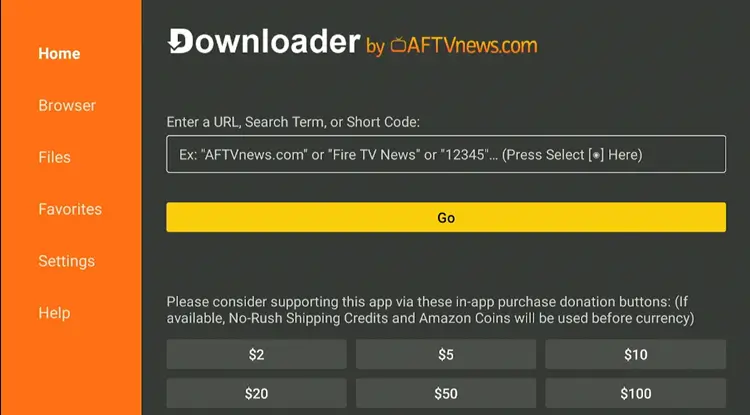
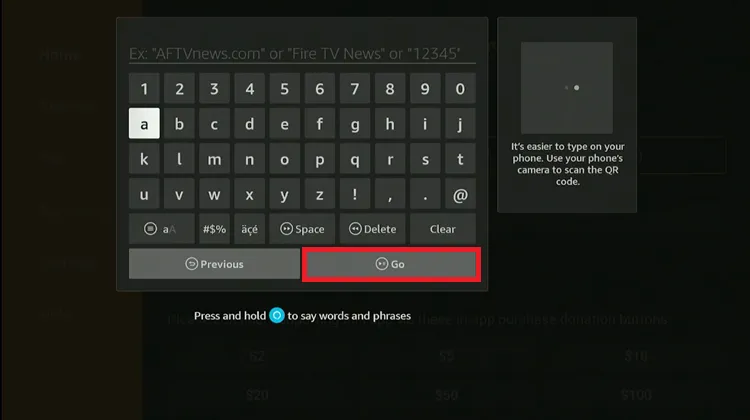
Step 2: Enter the IPTV Smarters Pro Downloader Code 5546232 in the search bar OR enter this URL bit.ly/43pEVWO and click Go.
Step 3: Scroll down to the IPTV Players section, find the IPTV Smarters Pro app, and tap on it to proceed.
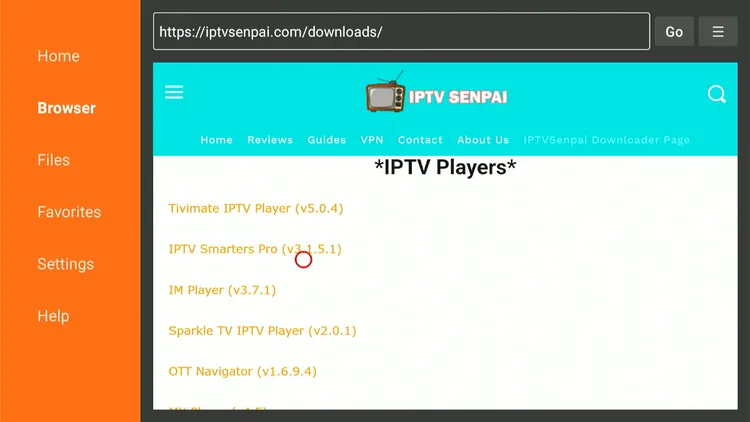
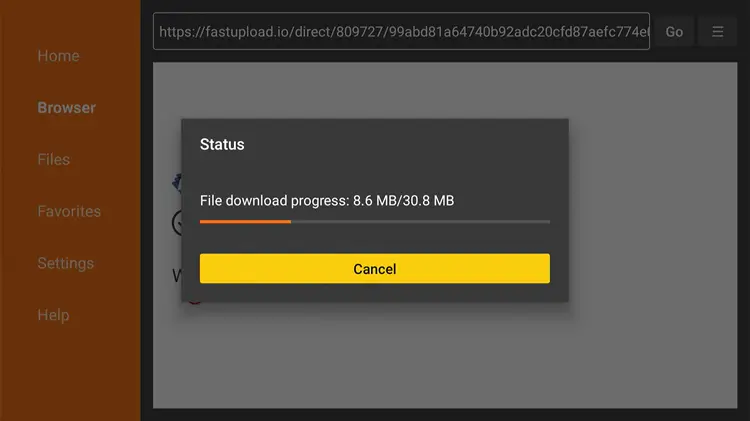
Step 4: The IPTV Smarters Pro APK will start downloading.
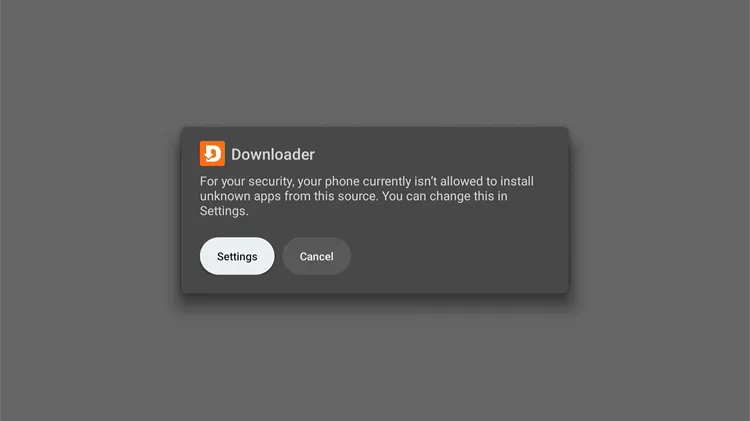
Step 5: You will now see a prompt asking you to Install Unknown Apps for Downloader. Select Settings to proceed.
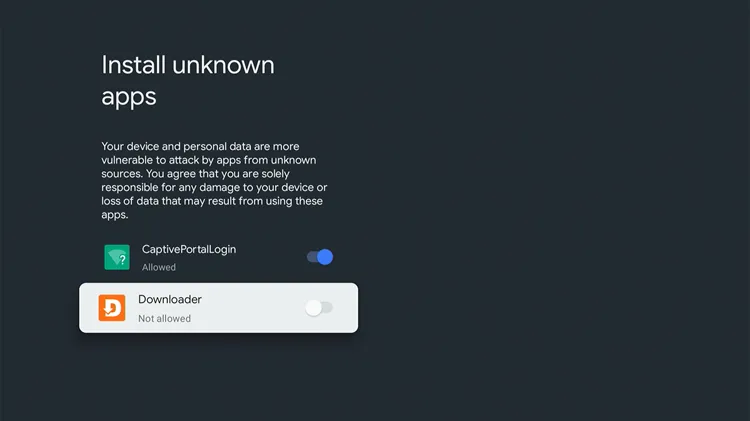
Step 6: Turn on the toggle to allow Installing Unknown Apps using the Downloader app.
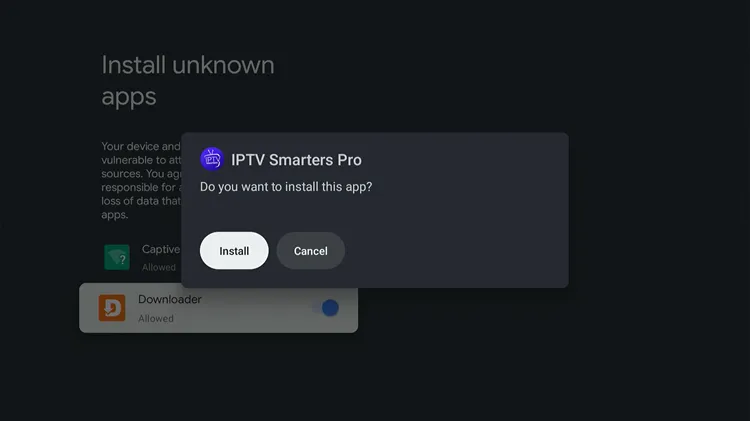
Step 7: Click Install.
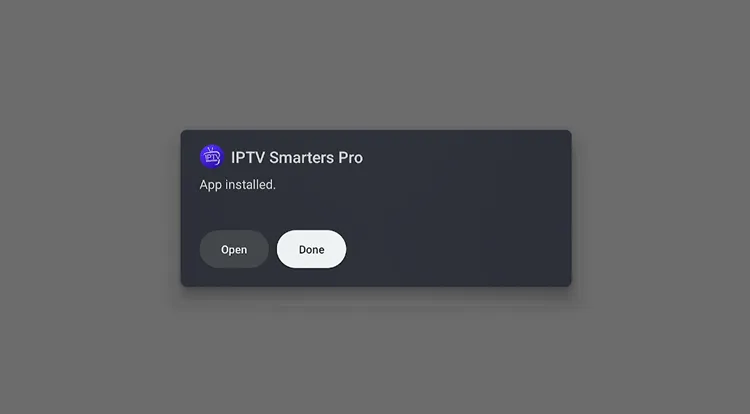
Step 8: Click Done.
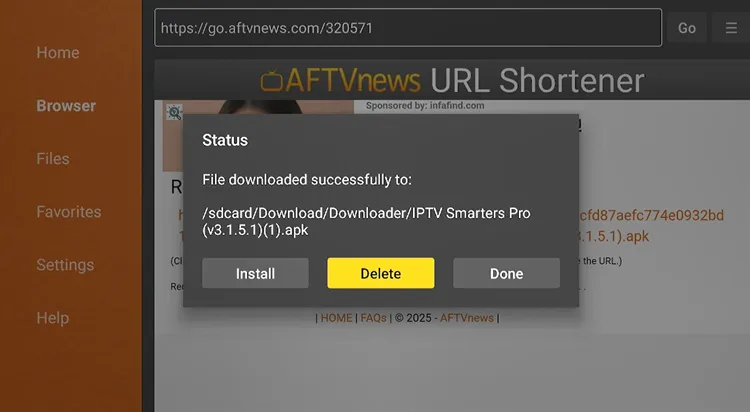
Step 9: Click Delete.
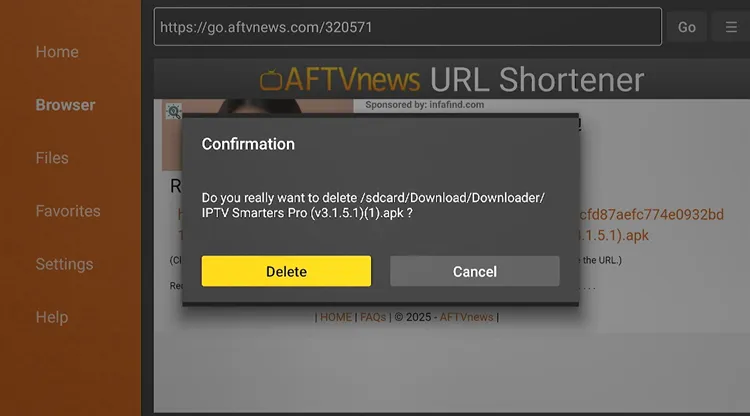
Step 10: Click Delete again. Installation is completed!
How to Set Up IPTV on IPTV Smarters Pro
After installing IPTV Smarters Pro, add your M3U or Xtreme Code given by your provider. Since content legality may vary, make sure you are connected to NordVPN before streaming anything. Here is how it is done:
Step 1: Open the NordVPN app and connect to any server.
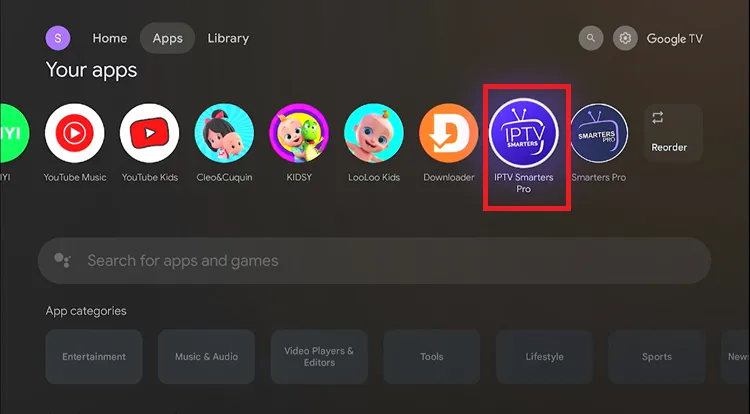
Step 2: Go to the Home screen, navigate to Apps, then search and select IPTV Smarters Pro to launch it.
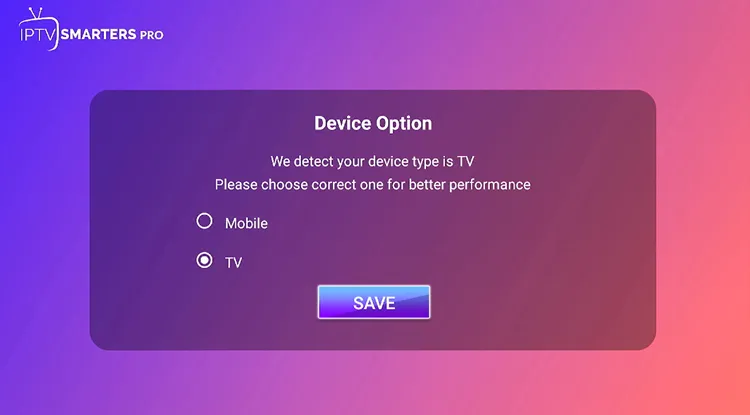
Step 3: The IPTV Smarters app will launch. Choose your device and click Save. (Select TV if using the Onn 4K box.)
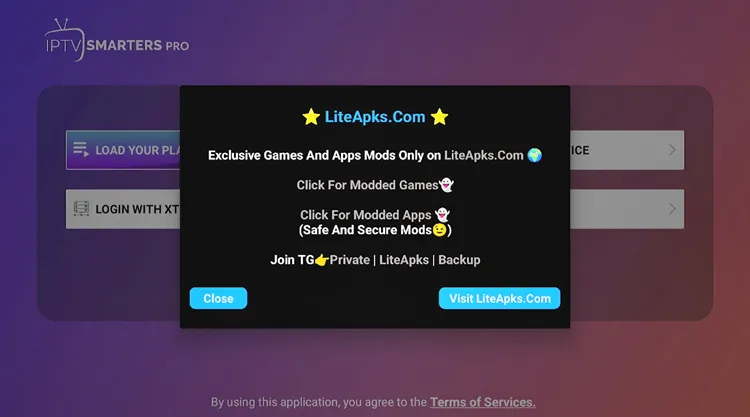
Step 4: Close the pop-up.
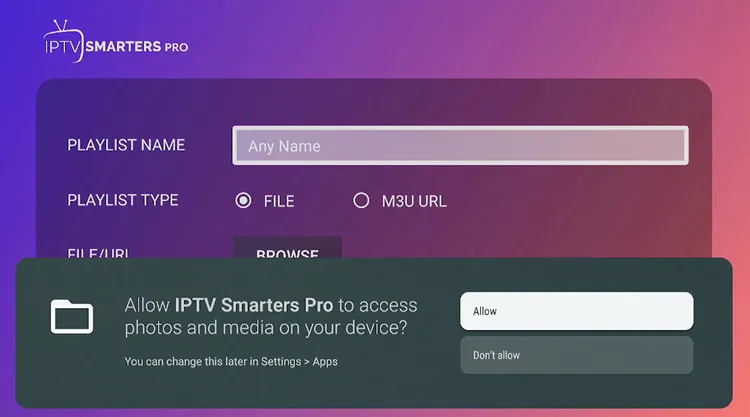
Step 5: Click Allow.
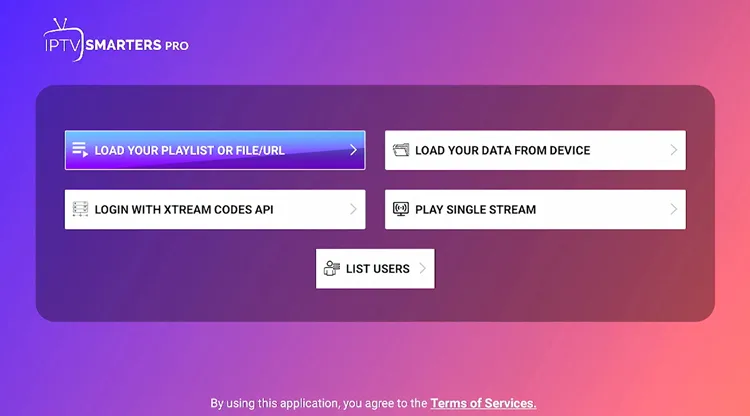
Step 6: You can either choose ‘Load Your Playlist File/URL’ or ‘Xtreme Code API’.
[Note: Service Providers usually provide you with an M3U Link / XTREME CODES API or both]
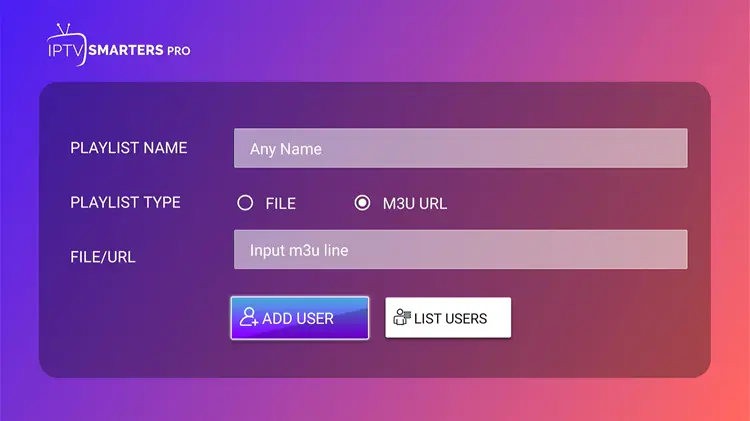
Step 7: Enter the Playlist Name, M3U URL Link, and click ADD USER.
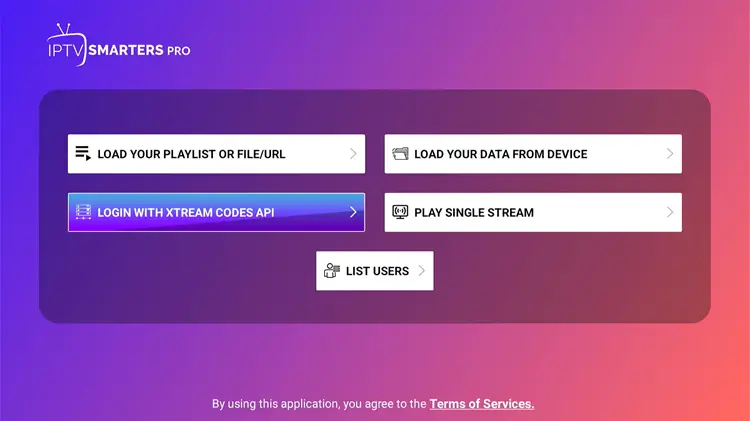
Step 8: Alternatively, you can opt for the XTREAM CODES API.
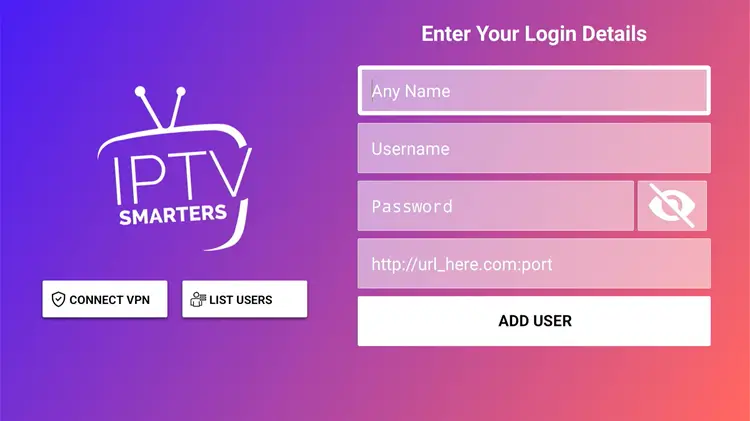
Step 9: Enter your Name, Username, Password, and the URL provided by your IPTV provider, then click Add User and start streaming.
Step 10: Click Live TV.
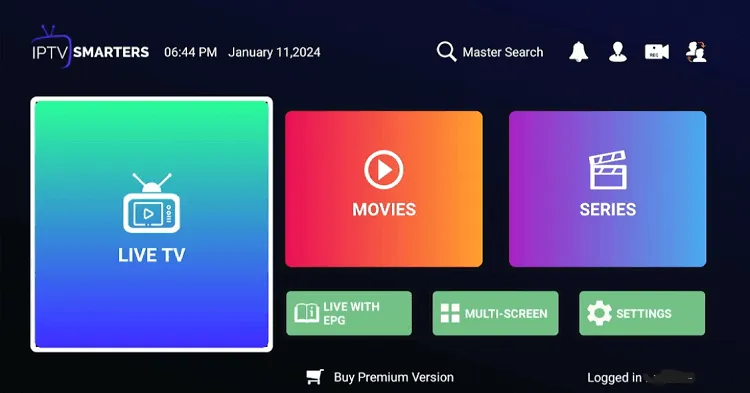
Step 11: Choose the Channel you want to stream.
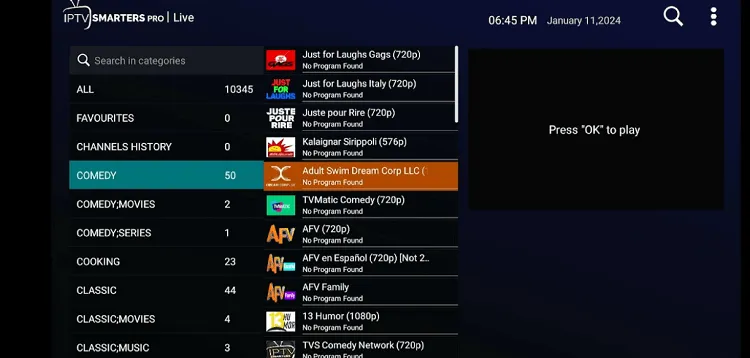
Step 12: Start Streaming.
IPTV Smarters Pro Features
Here’s what you get with IPTV Smarters Pro:
- Price: Completely free on most devices (except iOS users)
- User Interface: Easy to navigate
- Compatible Devices: FireStick, Android Phones, TV, iOS, Windows, and more
- Supported Format: M3U File/Link & Xtream Codes API
- Multi-screen support: Yes (up to 4 screens)
- Recording: Yes
- Catch-Up TV: Yes
- EPG Integration: Yes
- Parental Controls: Yes
- Subtitles: Yes
IPTV Smarters Pros & Cons
| Pros | Cons |
|---|---|
| Free to use | Performance issues on some devices |
| User-friendly interface | Google Play version crashes often |
| Supports multiple devices | Recording requires USB storage |
| Multi-screen, EPG, and external video player support | |
| Parental controls and recording feature | |
| Supports VPN integration | |
| Web player available | |
| Backup and restore feature |
Is IPTV Smarters Pro Free?
Yes, IPTV Smarters Pro is 100% free for Android/Google device users. You get almost all features without paying anything. However, iOS users need to unlock the premium version through an in-app purchase.
The premium version includes features like:
- Master search
- Picture-in-picture
- Chromecast support
- External EPG sources
IPTV Smarters Pro Official Web Player
You can access the IPTV Smarters Pro web player at the official link: webtv.iptvsmarters.com
It is one of the most solid IPTV players for Windows/PC and is completely free to use — you just need an IPTV subscription. It supports Xtream Codes, 1 Stream Panel, or M3U URLs.
Once your service is integrated, you can easily browse and access all your channel options, just like on any other device. However, the app has a better experience than the web version.
How to Install IPTV Smarters Pro on iPhone
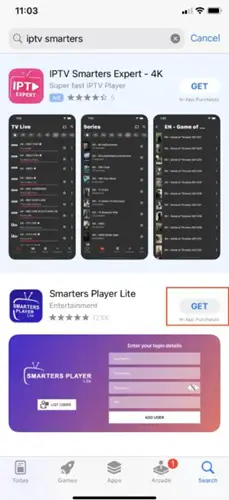
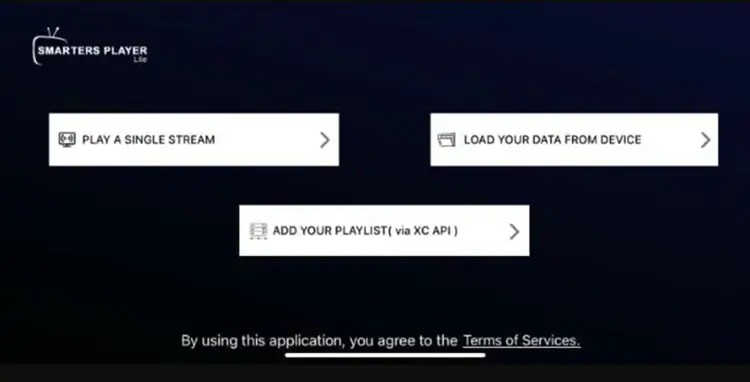
The Smarters Player Lite app is available for download on the Apple App Store.
Step 1: Go to the Apple App Store, search for IPTV Smarters, and find Smarters Player Lite. Click Get.
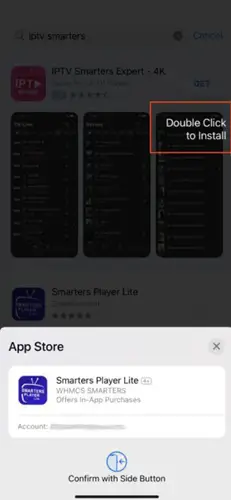
Step 2: Click to Install.
Step 3: Open the app and the login screen will appear.
IPTV Smarters on Android Phone/Tablet
Although a version of the app is available on the Google Play Store, to use IPTV Smarters on an Android phone or tablet you’ll need to install the APK directly.
Many users report issues such as app crashes, constant buffering, and poor functionality, often describing the Play Store version as a complete waste of time.
Use this link for the APK via the Downloader code: 5546232 in the search bar OR enter this URL bit.ly/43pEVWO and click Go.
IPTV Smarters Pro Premium Features (FREE)
IPTV Smarters Pro Premium version is also FREE (except for iOS users). You can get it directly from the website — check out and enter your details, and it will get activated.
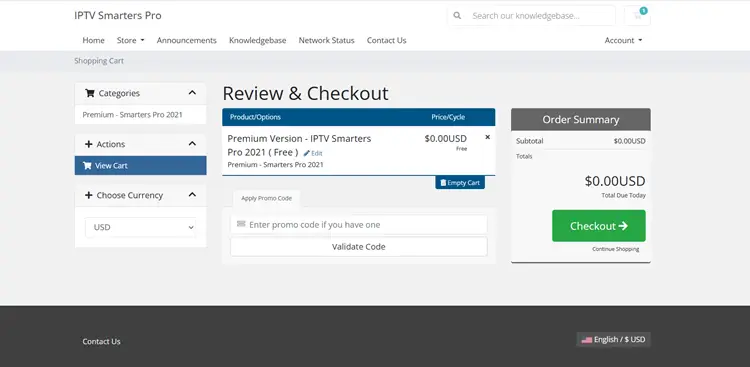
Go back to the IPTV Smarters Pro app. Click Settings, then enter your email ID and password to activate the premium version. Once activated, here are the features you can enjoy:
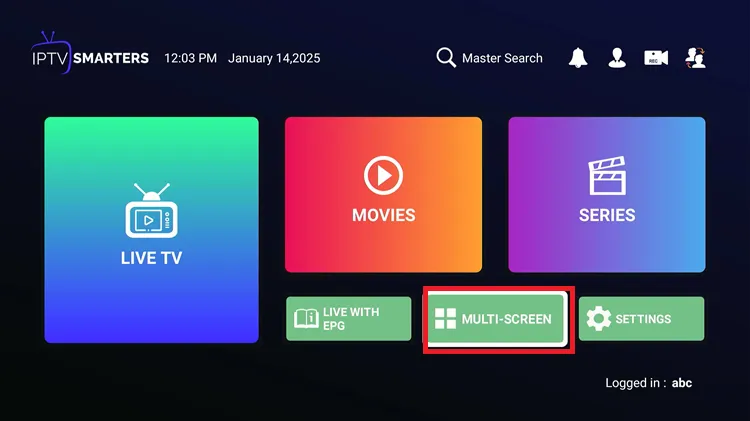
1. Multiple Screens
It offers streaming on up to 4 screens simultaneously, which TiviMate and other players offer only with a paid subscription.
Step 1: Go to Settings on the Home Screen.
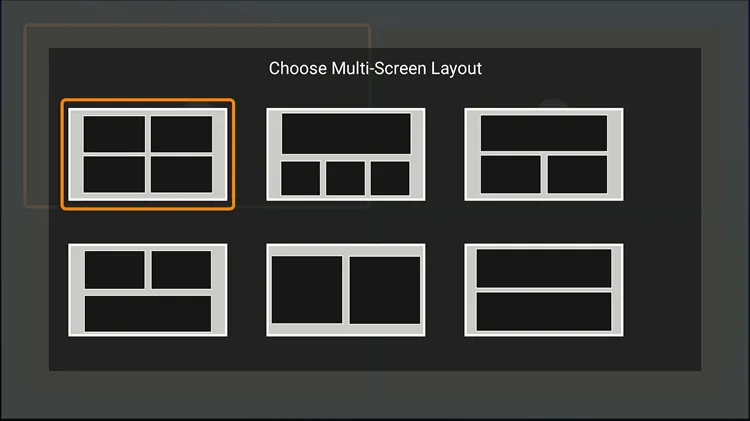
Step 2: Choose the Layout.
Step 3: Add the Channels in the tabs and start watching.

2. External Players Integration
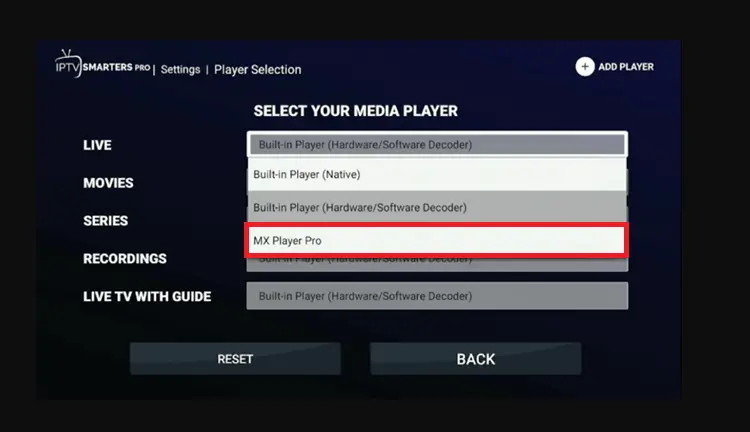
IPTV Smarters allows external video players like MX Player, which works well for movies and TV series. For live TV, the built-in player is recommended.
First, install the external player on your device, then enable it in the app settings by following the steps below.
Step 1: Open Settings and click ‘Player Selection’.
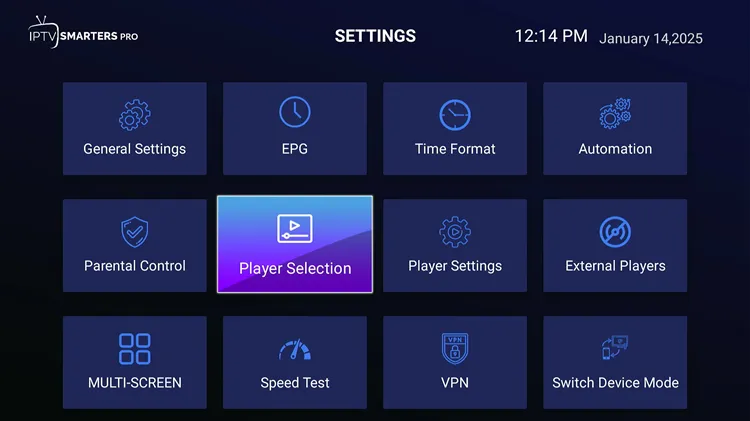
Step 2: Click Add Player.
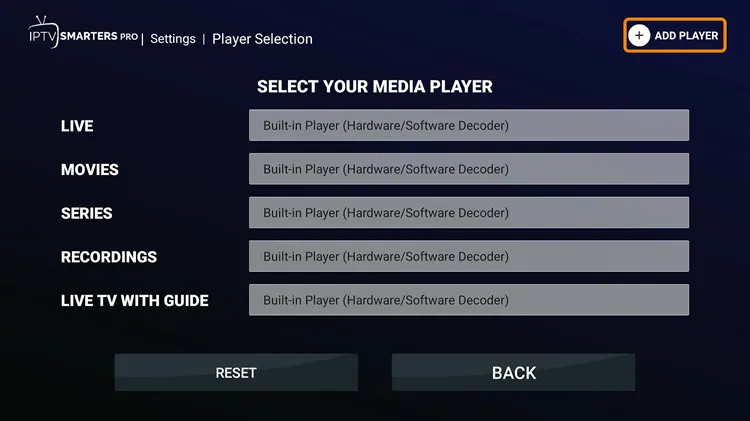
Step 3: Choose MX Player.
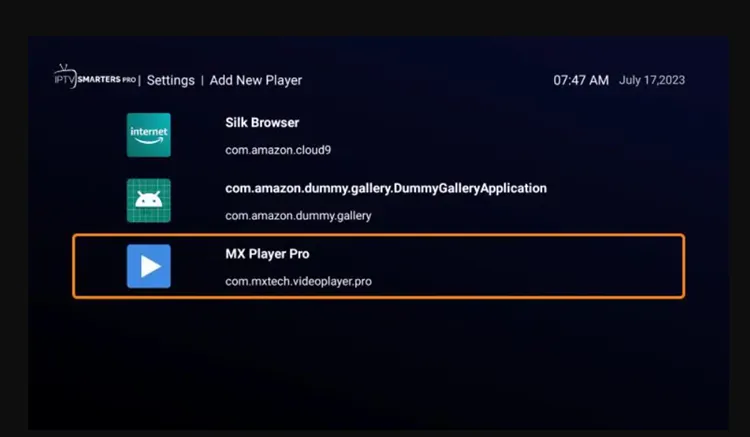
Step 4: Click Add.
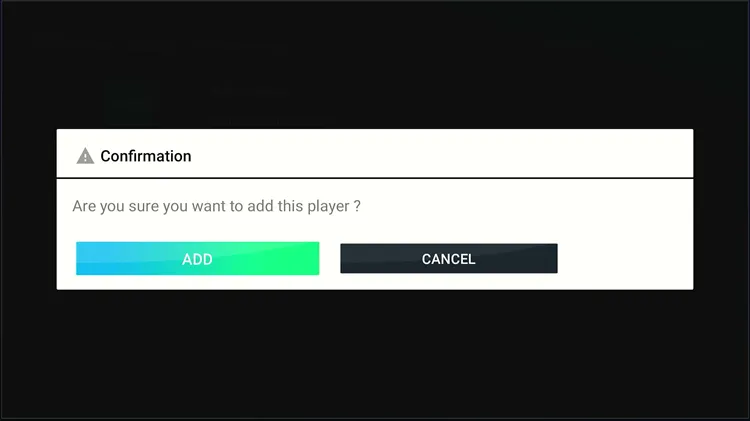
Step 5: Choose the category where you want to integrate the player and select MX Player. Your external player will be successfully integrated.
3. Parental Controls
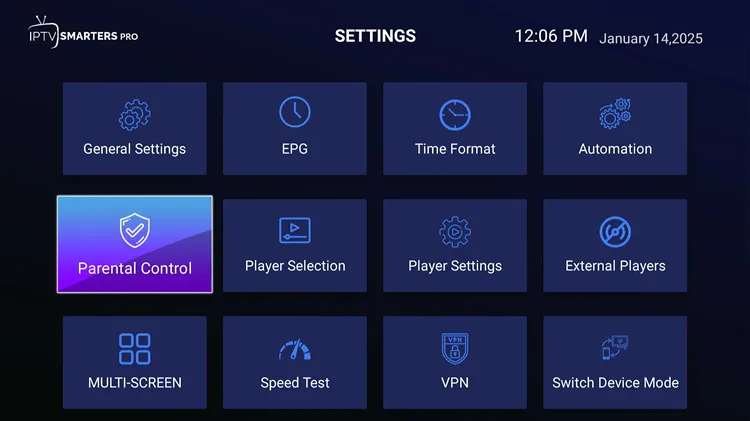
IPTV Smarters Pro gives the option to enable Parental Control. Follow the steps to enable it.
Step 1: Open Settings and click ‘Parental Control’.
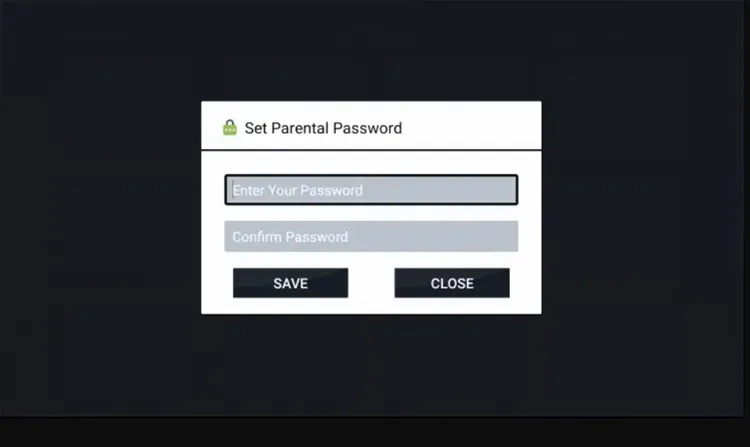
Step 2: Set the Password.
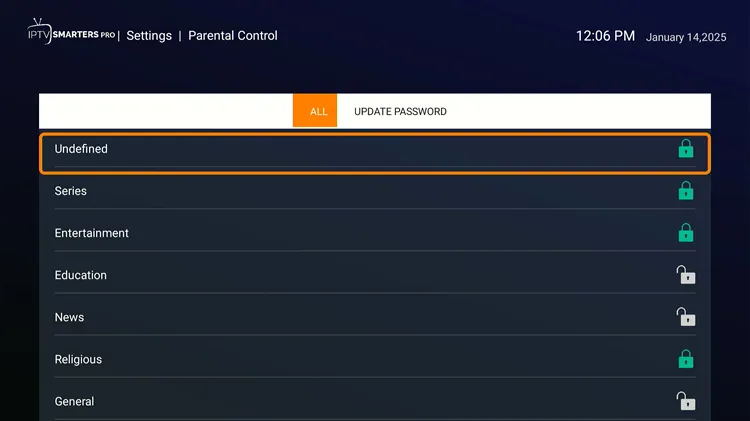
Step 4: Lock and unlock channels as per your requirement. You will then be shown only the permitted channels.
FAQs
IPTV Smarters Pro Review
If you’re looking for a free IPTV player that covers the basics and then some, IPTV Smarters Pro is worth a shot. It’s easy to set up, works with most IPTV services, and brings features like multi-screen support, EPG, parental controls, and more — all for free.
That said, it also has flaws. The Play Store version crashes often, recording is basic at best, and the app just isn’t the most stable option out there. If you’re on a FireStick, Android box, or Onn Stream, TiviMate is the stronger pick if you want a premium experience.
But for a free IPTV player with solid features, IPTV Smarters Pro is still worth trying. Pair it with a reliable IPTV service and you’ll get a decent experience overall.
Just one thing — if you’re streaming unverified content, keep your connection encrypted with NordVPN. I never stream without it, and neither should you.
🔒 Protect Your IPTV Streaming with NordVPN
Stop your ISP from seeing what you stream. NordVPN encrypts all your traffic, bypasses throttling, and keeps you completely private — on every device.
Get NordVPN — 30-Day Money-Back Guarantee