If you want to play PC games on your Mac, installing Steam is one of the easiest ways to get started. Steam allows you to download, install, and manage thousands of games in one place.
Although macOS is not traditionally known as a gaming platform, many popular games are now available for Mac through Steam. With just a few simple steps, you can install the Steam client on your MacBook Air, MacBook Pro, or iMac and start exploring its massive game library.
In this guide, you will learn how to download and install Steam on macOS step by step. Follow the instructions below to set up Steam and begin playing your favorite games on your Mac.
Table of Contents
- What is Steam?
- Steps to Download Steam on macOS
- Steps to Install Steam on macOS
- Troubleshooting: Fix Steam Issues on Mac
- Steam System Requirements for Mac
- Conclusion
- Frequently Asked Questions
What is Steam?
Steam is a popular digital video game distribution platform developed by Valve Corporation. It allows users to buy, download, install, and play video games directly on their computers.
Launched in 2003, Steam has grown into one of the largest gaming platforms in the world, offering more than 30,000 games from both major studios and independent developers. The platform is available on multiple operating systems, including Windows, macOS, and Linux.
With Steam, users can:
- Download and install thousands of games
- Receive automatic game updates
- Play multiplayer games with friends
- Save game progress using cloud storage
- Join gaming communities and forums
Steam also supports multiple payment methods and provides a refund policy, making it easy and safe for players to purchase games online.
Because of its massive game library and powerful features, Steam has become the go-to platform for PC gamers worldwide.
Steps to Download Steam on macOS
Follow these simple steps to download Steam on your Mac.
Step 1. Open any web browser and go to the official Steam website https://store.steampowered.com/
Step 2. On the homepage, click the “Install Steam” button.
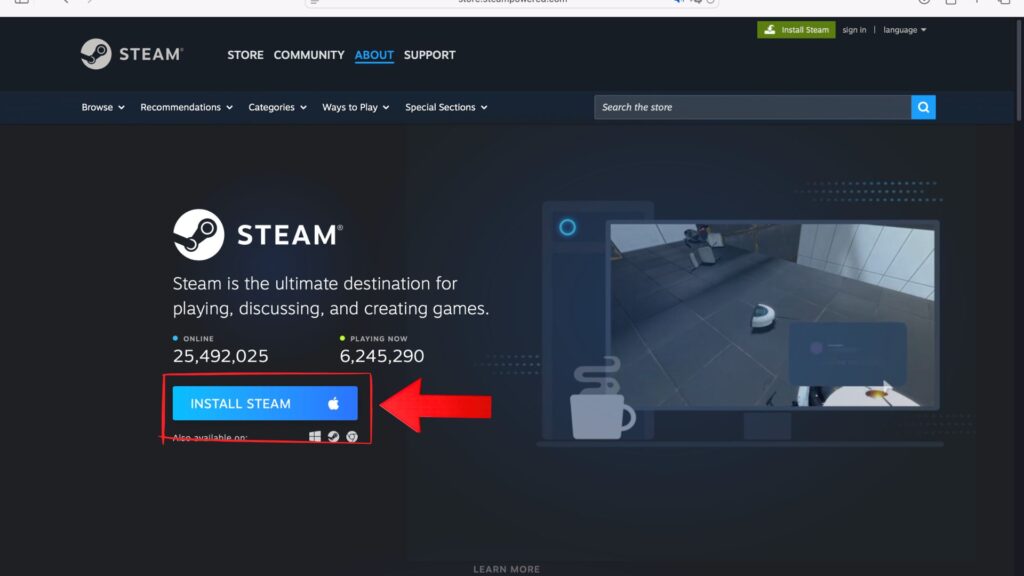
Step 3. Your browser will start downloading the Steam installer for macOS.
Steps to Install Steam on macOS
After downloading the installer, follow the steps below to install Steam on your Mac.
Step 1. Open the downloaded Steam.dmg file. You can find it in your Downloads folder.
Step 2. A new installation window will appear on your screen.
Step 3. Drag the Steam icon into the Applications folder to begin the installation.

Step 4. Once the installation is complete, open Finder → Applications, then click Steam to launch the app.
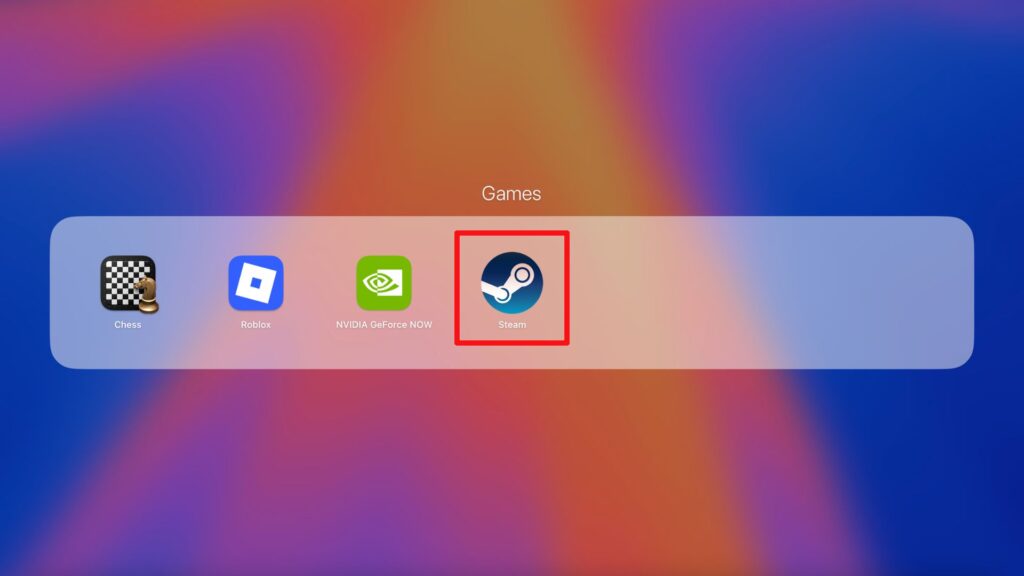
Step 5. When Steam opens for the first time, it will automatically check for updates and download the latest files. The update time will depend on your internet speed.
Step 6. After the update finishes, the Steam login screen will appear. You can sign in with your existing account or create a new Steam account.
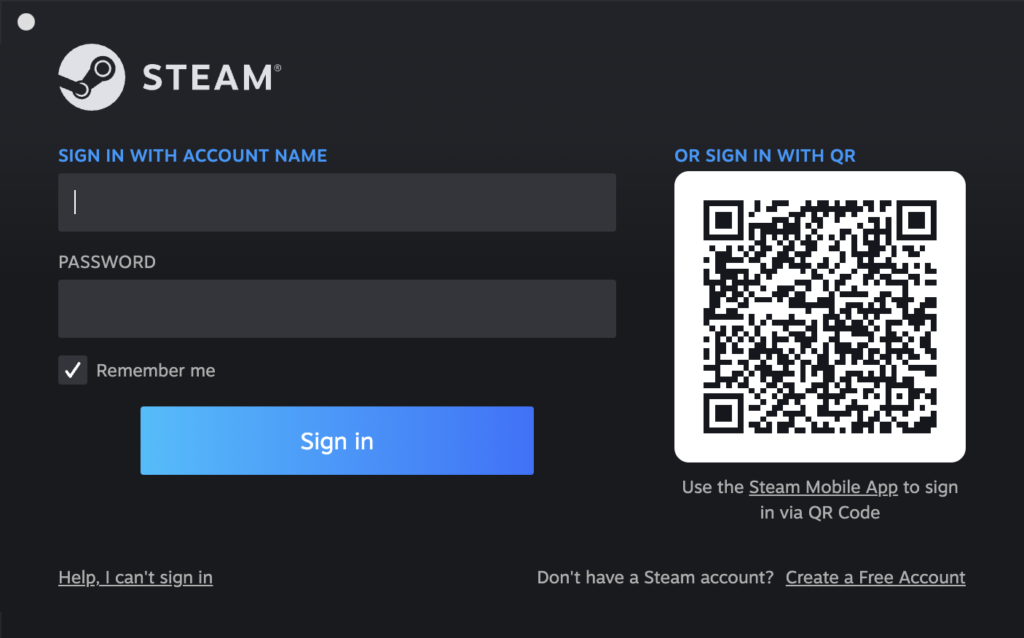
Once you log in, the Steam interface will load and you can start browsing and downloading games.
Troubleshooting: Fix Common Issues When Installing Steam on Mac
If you experience problems while installing or opening Steam on your Mac, try the solutions below.
1. Steam Won’t Open on Mac
If Steam does not launch after installation, try these steps:
- Restart your Mac and open Steam again.
- Make sure your macOS version is up to date.
- Delete the Steam app and reinstall it from the official website.
2. Steam Installer Won’t Open
Sometimes the downloaded Steam.dmg file may not open properly.
To fix this:
- Go to Finder → Downloads and double-click the Steam installer again.
- If macOS blocks the file, go to System Settings → Privacy & Security and allow the app to open.
3. Steam Stuck on Updating
If Steam gets stuck while updating:
- Check your internet connection.
- Restart the Steam application.
- Restart your Mac and launch Steam again.
4. Steam Login Problems
If you cannot log in to your Steam account:
- Make sure your username and password are correct.
- Reset your password using the Forgot Password option.
- Check if Steam servers are temporarily down.
Steam System Requirements for Mac
Before installing Steam on your Mac, make sure your device meets the minimum system requirements. This will help ensure the Steam client runs smoothly and allows you to download and play supported games without issues.
Minimum Requirements
- Operating System: macOS 10.13 (High Sierra) or later
- Processor: Intel processor or Apple Silicon (M1, M2, M3)
- Memory: At least 4 GB RAM
- Storage: Minimum 1 GB of available disk space for the Steam client (games require additional space)
- Internet: Stable internet connection for downloading and updating games
Recommended Requirements
For a better gaming experience on Mac:
- macOS: Latest macOS version
- Memory: 8 GB RAM or higher
- Storage: SSD with sufficient free space for games
- Graphics: GPU that supports modern games available on Steam
Tip: Even if Steam runs on your Mac, some games may only support Windows. Always check the system requirements on the game’s page before downloading.
Conclusion
By following the steps above, you can easily download and install Steam on macOS and start exploring thousands of games available on the platform.
If you have any questions, feel free to check the Frequently Asked Questions (FAQ) section below for more help.
Frequently Asked Questions
Can I install Steam on Mac?
Yes, you can install Steam on a Mac by downloading the official installer from the Steam website.
Is Steam free to download on Mac?
Yes, Steam is free to download and install, but some games require payment.
Does Steam work on MacBook Air?
Yes, Steam works on MacBook Air, MacBook Pro, and iMac as long as the game supports macOS.
Why is Steam not opening on my Mac?
This may happen due to outdated macOS or corrupted files. Try restarting your Mac or reinstalling Steam.