Geometry Dash Lite is a free rhythm-based platformer developed by RobTop Games that has captivated millions of players worldwide with its fast-paced gameplay, pulsing electronic soundtrack, and brutally challenging levels. Your goal is simple: guide a cube — and later a ship, ball, UFO, and more — through obstacle-filled levels in perfect sync with the music. One wrong move and you start over.
While the game is built for mobile, playing Geometry Dash Lite on PC gives you a massive advantage. A larger screen means you can see obstacles earlier, a keyboard click is faster and more precise than a tap, and you never have to worry about battery drain during long practice sessions. Whether you’re grinding for 100% on a demon level or just learning the ropes, the PC experience is simply better.
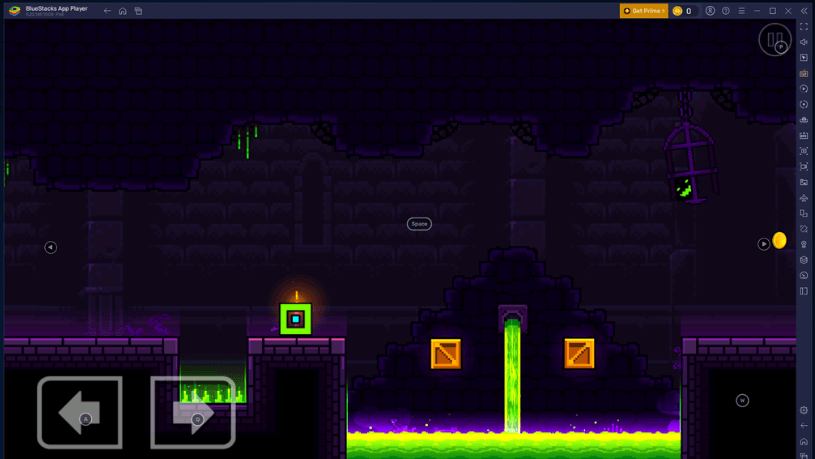
Setting up takes less than 10 minutes and is completely free. Whether you’re on Windows 11/10 or a MacBook, this guide walks you through every step — from downloading the right emulator to nailing your first level on the big screen.
1 System Requirements
Before installing any emulator, make sure your computer meets these minimum requirements to run Geometry Dash Lite smoothly.
| Component | Minimum | Recommended |
|---|---|---|
| OS | Windows 7 / macOS 11 Big Sur | Windows 10/11 / macOS 12+ |
| CPU | Intel Core i3 / AMD Ryzen 3 | Intel Core i5 / Ryzen 5 or higher |
| RAM | 4 GB | 8 GB or more |
| GPU | Intel HD Graphics 4000 | Dedicated GPU (NVIDIA / AMD) |
| Storage | 2 GB free disk space | 5 GB+ free (SSD preferred) |
| Internet | Required for initial setup only | Stable broadband connection |
You must be an Administrator on your PC to install and run an Android emulator. If you’re on a company or school computer with restrictions, this may not work without IT approval.
2 How to Play Geometry Dash Lite on Windows 11/10
The best way to play Geometry Dash Lite on Windows is by using an Android emulator. Here are the three top options — all free to use and trusted by millions of players:



Go to the official website at bluestacks.com and click “Download BlueStacks 5”. The installer is approximately 500 MB. Always download from the official site to avoid malware.
Run the downloaded BlueStacksInstaller.exe file. Click “Install Now” and follow the on-screen prompts. Installation takes 3–5 minutes. BlueStacks will launch automatically when done.
Once BlueStacks opens, sign in with your Google account to access the Play Store. If you don’t have one, create a free account at accounts.google.com.
Open the Google Play Store inside BlueStacks. In the search bar, type “Geometry Dash Lite”. Select the game published by RobTop Games — it should show 100M+ downloads.
Click “Install” and wait for the download to complete. Once done, click “Open” or find the Geometry Dash Lite icon on your BlueStacks home screen to launch the game.
Click the keyboard icon on the right toolbar to open the Keymapping Tool. By default, mouse click and Spacebar both work as the jump button. You can also map any key you prefer — many players use the Up Arrow or Z key for tapping during fast sections.
In a rhythm game like Geometry Dash, even a few milliseconds of input lag can ruin a run. Enable Virtualization Technology (VT-x / AMD-V) in your BIOS for the lowest possible latency in BlueStacks. Restart → BIOS (F2 or Del) → Advanced → CPU Configuration → Enable VT-x or AMD-V.
Visit ldplayer.net and download LDPlayer 9. It supports Android 9 and uses fewer system resources than BlueStacks — ideal if your PC has 4–6 GB RAM.
Run the installer and follow the setup wizard. After installation, LDPlayer opens automatically. Sign in to your Google account when prompted to access the Play Store.
Open the LD Store or Google Play Store inside LDPlayer. Search for “Geometry Dash Lite” and tap Install. The game will download and be ready in a few minutes.
Use LDPlayer’s Keyboard Mapping tool to assign your jump key. Map Spacebar or mouse click to the screen tap. LDPlayer also supports gamepad controllers out of the box for an alternative input style.
Go to LDPlayer Settings → Performance and set the renderer to OpenGL. Also set FPS to 60 and allocate at least 3 GB RAM. These three changes together significantly reduce input lag for rhythm-based gameplay.
Go to gameloop.com and download the GameLoop emulator. It’s free and specifically designed for mobile games on PC with optimized gaming performance.
Install using the setup wizard. When GameLoop opens, use the search bar at the top and type “Geometry Dash Lite” to find the game in the GameLoop game center.
Click “Install Game” next to Geometry Dash Lite. Once downloaded, click “Play” to launch. GameLoop opens the game in a fullscreen-optimized window — jump in and start your first run!
For Geometry Dash Lite, BlueStacks is the best choice due to its lowest input lag and most stable performance. If your PC has 4–6 GB RAM, use LDPlayer for a lighter experience. GameLoop is a solid beginner-friendly option that’s very easy to set up.
3 How to Play Geometry Dash Lite on MacBook
Playing Geometry Dash Lite on a Mac is slightly different depending on whether you have an Intel Mac or an Apple Silicon Mac (M1/M2/M3/M4). Both work great with the right emulator.
To check: click the Apple menu (🍎) → About This Mac. If it shows “Intel”, you have an Intel Mac. If it says “Apple M1 / M2 / M3 / M4”, you have Apple Silicon. Both support the methods below.
Visit bluestacks.com on your Mac. The website auto-detects your chip and offers the correct build — Intel or Apple Silicon. Click “Download BlueStacks”.
Open the downloaded .dmg file. Drag the BlueStacks icon into your Applications folder. Open BlueStacks from Applications or Launchpad to begin setup.
macOS may block BlueStacks on first launch. Go to System Settings → Privacy & Security, scroll down, and click “Open Anyway” next to the BlueStacks warning. Then re-launch the app.
Sign in with your Google account inside BlueStacks. Open the Google Play Store, search for “Geometry Dash Lite”, and tap Install.
Click the Geometry Dash Lite icon on your BlueStacks home screen to launch the game. Use Spacebar, mouse click, or any mapped key to jump. Your Mac’s trackpad click also works perfectly as a tap input.
BlueStacks for Mac requires macOS 11 Big Sur or later. For M1/M2/M3/M4 Macs, always download the Apple Silicon build — running the Intel version under Rosetta will add input lag, which is critical to avoid in a rhythm game.
Visit ldplayer.net and download the macOS version of LDPlayer. It is specially optimized for Apple Silicon (M1/M2/M3/M4) chips and runs very efficiently.
Open the downloaded .dmg file and drag LDPlayer to the Applications folder. If macOS blocks the app, go to System Settings → Privacy & Security → Open Anyway.
Launch LDPlayer and complete the initial setup. Sign in with your Google account to access the Play Store. First launch typically takes 2–3 minutes to initialize.
Open the Play Store inside LDPlayer, search for “Geometry Dash Lite”, install the game, then launch it and start conquering levels on your Mac!
Geometry Dash Lite saves progress locally by default. To sync between your phone and PC emulator, log in with your RobTop account inside the game (Settings → Account → Login). This keeps your level completion, icons, and stars in sync across all devices.
4 Pro Tips for Best Performance
Optimize Your Setup for Geometry Dash Lite
Since Geometry Dash Lite is a rhythm game, input latency matters more than in any other genre. Use these tips to get the most precise and responsive experience on PC:
Most experienced PC players prefer Spacebar as their jump key — it’s easier to hold during ship sequences and more consistent for timing during wave sections. Map it in your emulator’s Keymapping Tool and practice until it feels natural.
Geometry Dash’s timing is built around 60 FPS. Running at a lower frame rate can make some jumps feel off. In BlueStacks: Settings → Performance → Frame Rate → 60 FPS. In LDPlayer: Settings → Game → FPS → 60.
Assign at least 3 GB RAM and 2 CPU cores to your emulator. Geometry Dash Lite is not very demanding, but giving it proper resources ensures smooth performance even during visually intense level sections.
Geometry Dash Lite includes a built-in Practice Mode — tap the pause button during a level and select Practice. You can place checkpoints anywhere and respawn from them, making it much easier to learn difficult sections before attempting a full run.
5 Frequently Asked Questions
🎮 Ready to Play Geometry Dash Lite on PC?
Download BlueStacks, install Geometry Dash Lite, and start nailing those impossible levels on the big screen — with precise keyboard controls and zero battery drain!
📌 This guide is published on capnamanh.com and updated for 2026. If you run into any issues setting up your emulator, drop a comment below and we’ll help you troubleshoot!