Truckers of Europe 3 is one of the most realistic and detailed truck driving simulation games available on mobile, developed by Wanda Software. Behind the wheel of iconic European trucks, you haul cargo across beautifully recreated highways, mountain roads, and city streets inspired by real European locations. With a deep progression system, a wide garage of trucks to collect and upgrade, and highly realistic driving physics, it’s the closest thing to Euro Truck Simulator on a mobile device.
Playing Truckers of Europe 3 on PC takes the experience to a completely new level. A larger screen lets you fully appreciate the stunning road environments, keyboard and mouse controls give you more precise steering and gear shifting, and you never have to worry about battery drain during long hauls. Whether you’re on Windows 11/10 or a MacBook, this guide walks you through every step — from choosing the right emulator to hitting the European highways on your computer for free.
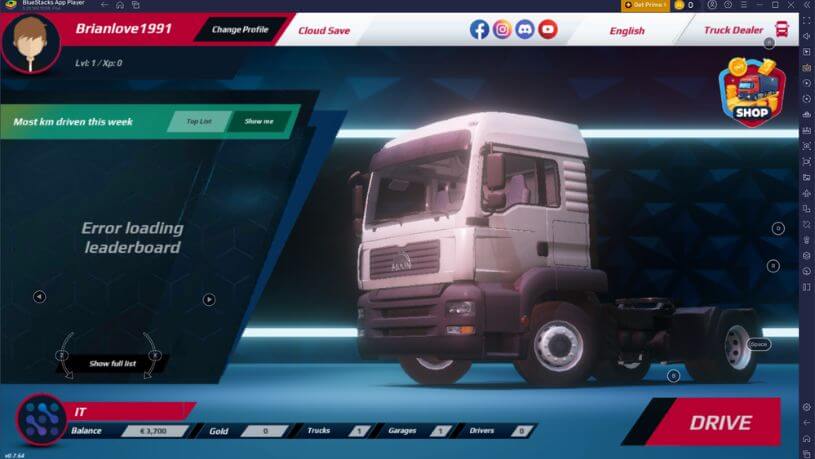
The setup takes less than 10 minutes and requires no technical skills. Your existing truck garage, upgrades, and career progress carry over automatically when you log in with your existing account.
1 System Requirements
Before installing any emulator, make sure your computer meets these minimum requirements to run Truckers of Europe 3 smoothly.
| Component | Minimum | Recommended |
|---|---|---|
| OS | Windows 7 / macOS 11 Big Sur | Windows 10/11 / macOS 12+ |
| CPU | Intel Core i3 / AMD Ryzen 3 | Intel Core i5 / Ryzen 5 or higher |
| RAM | 4 GB | 8 GB or more |
| GPU | Intel HD Graphics 4000 | Dedicated GPU (NVIDIA / AMD) |
| Storage | 5 GB free disk space | 10 GB+ free (SSD preferred) |
| Internet | Stable broadband connection | 10+ Mbps for smooth gameplay |
You must be an Administrator on your PC to install and run an Android emulator. If you’re on a company or school computer with restrictions, this may not work without IT approval.
2 How to Play Truckers of Europe 3 on Windows 11/10
The best way to play Truckers of Europe 3 on Windows is by using an Android emulator. Here are the three top options — all free to use and trusted by millions of players:



Go to the official website at bluestacks.com and click “Download BlueStacks 5”. The installer is approximately 500 MB. Always download from the official site to avoid malware.
Run the downloaded BlueStacksInstaller.exe file. Click “Install Now” and follow the on-screen prompts. Installation takes 3–5 minutes. BlueStacks will launch automatically when done.
Once BlueStacks opens, sign in with your Google account to access the Play Store. If you don’t have one, create a free account at accounts.google.com.
Open the Google Play Store inside BlueStacks. In the search bar, type “Truckers of Europe 3”. Select the game published by Wanda Software — it should show 10M+ downloads.
Click “Install” and wait for the download to complete. Once done, click “Open” or find the Truckers of Europe 3 icon on your BlueStacks home screen to launch the game.
Click the keyboard icon on the right toolbar to open the Keymapping Tool. Assign A/D or Arrow keys for steering, W/S for accelerate/brake, and Shift for gear up. For the most authentic truck driving feel, connect a USB gamepad — BlueStacks detects it automatically.
Truckers of Europe 3 has full gamepad support. Connecting an Xbox or PlayStation controller via USB or Bluetooth gives you analog stick steering and trigger-based throttle/brake — far more realistic than keyboard. BlueStacks and LDPlayer both detect most gamepads automatically without any configuration.
Visit ldplayer.net and download LDPlayer 9. It supports Android 9 and uses fewer system resources than BlueStacks — ideal if your PC has 4–6 GB RAM.
Run the installer and follow the setup wizard. After installation, LDPlayer opens automatically. Sign in to your Google account when prompted to access the Play Store.
Open the LD Store or Google Play Store inside LDPlayer. Search for “Truckers of Europe 3” and tap Install. The game will download and be ready in a few minutes.
Use LDPlayer’s Keyboard Mapping tool to assign steering, throttle, and brake to your preferred keys. LDPlayer also supports gamepad controllers out of the box — connect your Xbox or PlayStation controller for the best driving experience.
For smooth visuals on Truckers of Europe 3, go to LDPlayer Settings → Performance and set the renderer to OpenGL. Set resolution to 1920×1080 and FPS to 60 for the best balance of visual quality and performance.
Go to gameloop.com and download the GameLoop emulator. It’s free and specifically designed for mobile games on PC with optimized gaming performance.
Install using the setup wizard. When GameLoop opens, use the search bar at the top and type “Truckers of Europe 3” to find the game in the GameLoop game center.
Click “Install Game” next to Truckers of Europe 3. Once downloaded, click “Play” to launch. GameLoop opens the game in a fullscreen-optimized window — ready to start your first delivery run.
If you have 8 GB+ RAM, go with BlueStacks — it offers the best graphics quality and gamepad support. If your PC has 4–6 GB RAM, use LDPlayer for a lighter footprint. GameLoop is a great beginner-friendly option that’s very easy to set up.
3 How to Play Truckers of Europe 3 on MacBook
Playing Truckers of Europe 3 on a Mac is slightly different depending on whether you have an Intel Mac or an Apple Silicon Mac (M1/M2/M3/M4). Both work great with the right emulator.
To check: click the Apple menu (🍎) → About This Mac. If it shows “Intel”, you have an Intel Mac. If it says “Apple M1 / M2 / M3 / M4”, you have Apple Silicon. Both support the methods below.
Visit bluestacks.com on your Mac. The website auto-detects your chip and offers the correct build — Intel or Apple Silicon. Click “Download BlueStacks”.
Open the downloaded .dmg file. Drag the BlueStacks icon into your Applications folder. Open BlueStacks from Applications or Launchpad to begin setup.
macOS may block BlueStacks on first launch. Go to System Settings → Privacy & Security, scroll down, and click “Open Anyway” next to the BlueStacks warning. Then re-launch the app.
Sign in with your Google account inside BlueStacks. Open the Google Play Store, search for “Truckers of Europe 3”, and tap Install.
Click the Truckers of Europe 3 icon on your BlueStacks home screen to launch the game. Connect a gamepad or use keyboard controls to steer your truck across Europe’s highways on the big Mac screen.
BlueStacks for Mac requires macOS 11 Big Sur or later. For M1/M2/M3/M4 Macs, always download the Apple Silicon build — running the Intel version under Rosetta will noticeably hurt graphics performance and frame rates.
Visit ldplayer.net and download the macOS version of LDPlayer. It is specially optimized for Apple Silicon (M1/M2/M3/M4) chips and runs very efficiently.
Open the downloaded .dmg file and drag LDPlayer to the Applications folder. If macOS blocks the app, go to System Settings → Privacy & Security → Open Anyway.
Launch LDPlayer and complete the initial setup. Sign in with your Google account to access the Play Store. First launch typically takes 2–3 minutes to initialize.
Open the Play Store inside LDPlayer, search for “Truckers of Europe 3”, install the game, then launch it and hit the European roads on your Mac!
Truckers of Europe 3 supports account-based progress sync. Log in with the same account on both your phone and PC emulator, and your truck garage, upgrades, earnings, and career progress will be available on all devices without losing any data.
4 Pro Tips for Best Performance
Optimize Your Setup for Truckers of Europe 3
Get the most immersive and smooth Truckers of Europe 3 experience on PC with these settings and tips:
Truckers of Europe 3 features detailed 3D environments and real-time traffic. Allocate at least 4 GB RAM and 4 CPU cores in emulator settings to prevent stuttering during long highway drives. In BlueStacks: Settings → Performance → Customize.
Truckers of Europe 3 looks stunning on a large screen at full resolution. In BlueStacks, go to Settings → Display and set resolution to 1920×1080 at 240 DPI to enjoy the detailed truck cabins and European landscapes in full quality.
A USB or Bluetooth gamepad (Xbox, PlayStation, or any Android-compatible controller) transforms the driving experience — analog stick steering is far more precise than keyboard arrows, and trigger-based throttle and braking makes every delivery feel realistic.
Enabling hardware virtualization in your BIOS gives a major performance boost for all emulators. Restart → enter BIOS (F2 or Del) → Advanced → CPU Configuration → Enable Intel VT-x or AMD-V. This helps maintain smooth frame rates during demanding outdoor scenes.
5 Frequently Asked Questions
🚛 Ready to Hit the European Highways on PC?
Download BlueStacks, install Truckers of Europe 3, and enjoy the ultimate truck driving experience on a bigger screen — with precise keyboard or gamepad controls!
📌 This guide is published on capnamanh.com and updated for 2026. If you run into any issues setting up your emulator, drop a comment below and we’ll help you troubleshoot!