MetaTrader 5 on Mac is now officially supported — MetaQuotes released a native Mac application that installs directly on macOS without any emulators, virtual machines, or compatibility layers. Whether you have an Intel Mac or an Apple Silicon Mac (M1/M2/M3/M4), the setup takes less than 5 minutes and it’s completely free.
In this guide, we walk you through every step to install MetaTrader 5 on Mac using the official native app — from downloading the installer to logging in to your broker’s live or demo account. You’ll also find tips to optimise your MT5 Mac setup for a smooth daily trading experience.
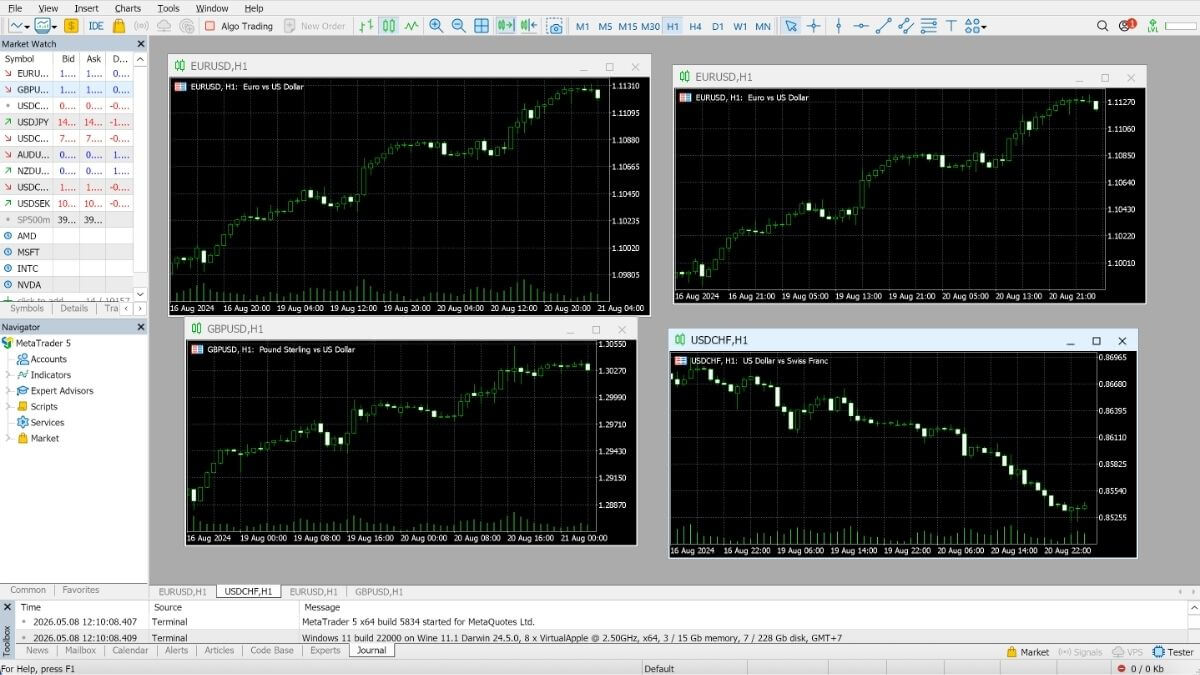
The native MT5 Mac app supports all core trading features — multi-timeframe charting, 80+ built-in indicators, one-click trading, real-time quotes, and full account management. Your account data, open positions, and trade history are all synced from your broker’s server, so switching between Mac and any other device is seamless.
1 System Requirements
The native MT5 Mac app is lightweight and runs comfortably on most modern Macs. Check the requirements below before downloading.
| Component | Minimum | Recommended |
|---|---|---|
| macOS Version | macOS 10.14 Mojave | macOS 13 Ventura or later |
| Chip | Intel Core i3 / Apple M1 | Intel Core i5+ / Apple M2 or higher |
| RAM | 4 GB | 8 GB or more |
| Storage | 500 MB free space | 2 GB+ free (for data & indicators) |
| Internet | Stable broadband | 10+ Mbps, wired preferred |
| Display | 1280 × 800 | 1920 × 1080 or Retina display |
The official MT5 Mac app supports both chip types. To check yours: click Apple menu (🍎) → About This Mac. If it shows “Intel” or “Apple M1/M2/M3/M4”, this guide works for you.
2 How to Install MetaTrader 5 on Mac
Follow these steps to get MetaTrader 5 running on your Mac in under 5 minutes. No emulators or third-party tools required.

Go to the official MetaQuotes download page at metatrader5.com/en/download and click the “Download for Mac OS” button. The file is a .dmg disk image, approximately 60–100 MB.
Alternatively, download directly from your broker’s website — most brokers (IC Markets, Pepperstone, OANDA, XM, etc.) offer their own branded MT5 Mac installer with their trading servers already pre-loaded. This saves you the step of searching for your broker’s server manually.
Open your Downloads folder and double-click the MetaTrader5.dmg file to mount it. A Finder window will appear showing the MetaTrader 5 icon and an Applications folder shortcut.
Drag the MetaTrader 5 icon into the Applications folder. Wait a few seconds for the copy to complete. Once done, you can eject the .dmg disk image — the app is now installed on your Mac.
Open your Applications folder (or Launchpad) and double-click MetaTrader 5 to launch it. On first launch, macOS may display a security warning saying the app “cannot be opened because it is from an unidentified developer.”
To fix this: go to System Settings → Privacy & Security, scroll down until you see the MetaTrader 5 entry, and click “Open Anyway”. A confirmation dialog will appear — click “Open”. This is a one-time step; MT5 will launch normally every time after this.
When MetaTrader 5 opens for the first time, the Account Setup Wizard appears automatically. In the search box, type your broker’s name — for example “Pepperstone”, “ICMarkets”, or “XM” — and wait for the server list to populate.
Select the correct server from the list. Brokers typically have separate servers for Demo and Live accounts, and may have multiple live servers (e.g., ICMarkets-Live01, ICMarkets-Live04). If you’re unsure which one to pick, check your broker’s welcome email — it usually specifies the server name. Click Next to proceed.
On the next screen, select “Connect to an existing account”. Enter your Login number (account ID) and Password as provided by your broker, then click Finish.
MetaTrader 5 will connect to your broker’s server and load your account — charts, open positions, trade history, and account balance will all appear within a few seconds. You’re ready to trade.
In the Setup Wizard, choose “Open a demo account” to get a free practice account loaded with virtual funds. It’s the best way to explore MetaTrader 5 on Mac — test charts, indicators, and order types — before trading with real money. Most brokers offer unlimited demo time.
3 Pro Tips for MT5 on Mac
Get the Most Out of MetaTrader 5 on macOS
Once MT5 is installed on your Mac, these tips will help you set up a clean, efficient trading environment:
Set up your preferred charts, timeframes, and indicators, then save them as a Profile: go to File → Profiles → Save As. MT5 will reload your exact layout every time you open the app — no need to rebuild your workspace from scratch after a restart.
Open Mission Control (swipe up with three fingers on the trackpad) and create a dedicated desktop space for MetaTrader 5. Assign MT5 to that space so it’s always one swipe away — a clean, distraction-free trading environment that stays organised even when you’re multitasking.
For scalping or news trading, connect your Mac to the internet via a USB-C to Ethernet adapter. A wired connection gives you significantly lower and more stable ping to your broker’s server compared to Wi-Fi — which can matter during fast-moving markets.
Your custom indicators, templates, and profiles are stored in the MT5 Data Folder. To find it, go to File → Open Data Folder inside MetaTrader 5. Back this folder up to iCloud or an external drive regularly — if you ever reinstall MT5, you can restore your entire setup in seconds.
MT5 on Mac can send system notifications when price alerts are triggered. Go to Tools → Options → Notifications and enable desktop alerts. You can also set MT5 to play a sound or send a push notification to your MetaTrader mobile app so you never miss a key price level.
MetaTrader 5 updates itself automatically when a new version is released — you’ll see a prompt on launch. Always keep MT5 up to date to ensure compatibility with your broker’s server and access to the latest charting and security improvements.
4 Frequently Asked Questions
xattr -cr /Applications/MetaTrader\ 5.app then press Enter. Re-launch MetaTrader 5 — the warning will be gone. This clears the quarantine flag that macOS places on downloaded apps.
📈 Ready to Install MetaTrader 5 on Your Mac?
Download the free official MT5 Mac app and start trading forex, stocks, and futures on your MacBook in under 5 minutes.
📌 This guide is published on capnamanh.com and updated for 2026. If you run into any issues installing MetaTrader 5 on your Mac, drop a comment below and we’ll help you troubleshoot!