Clash Royale is one of the most competitive and addictive real-time strategy card games ever made on mobile, developed by Supercell. You build a deck of cards featuring iconic Clash of Clans characters — from Goblins and Giants to legendary cards like the Mega Knight and Electro Giant — and battle opponents in intense 3-minute 1v1 or 2v2 arena duels. With constant seasonal updates, ranked ladder play, and a thriving esports scene, Clash Royale has remained one of the top mobile games in the world since 2016.
Playing Clash Royale on PC unlocks a completely different level of gameplay. A larger screen lets you read the battlefield at a glance and react faster, mouse precision gives you pinpoint card placement that’s simply not possible on a small touch screen, and you’ll never lose a match because your phone ran out of battery. Whether you’re on Windows 11/10 or a MacBook, this guide covers every step — from picking the right emulator to dominating the arena on your computer for free.
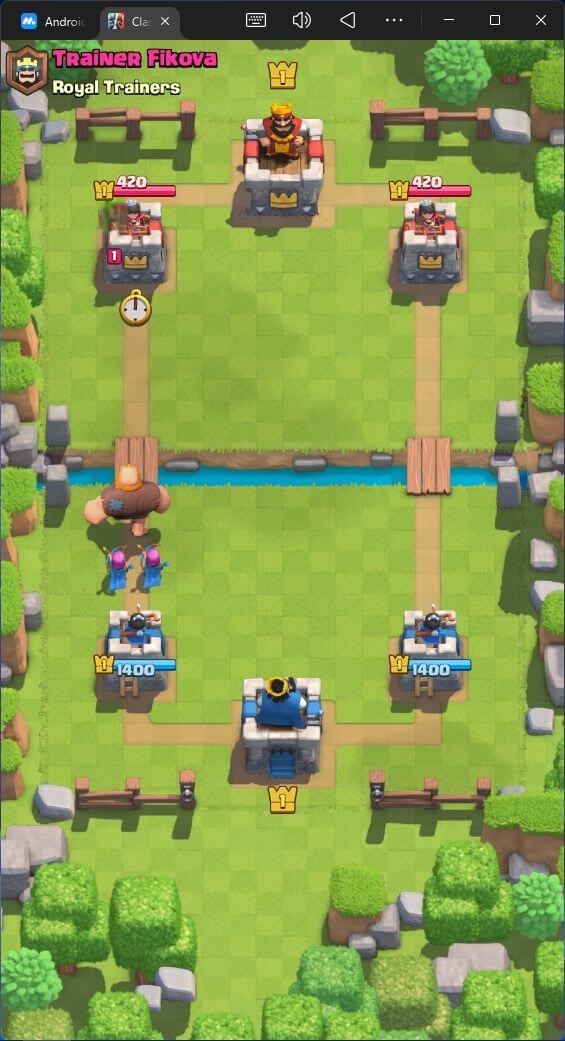
The entire setup takes less than 10 minutes and requires no technical knowledge. Your existing trophy count, card levels, deck collections, and Clash Pass progress carry over automatically when you log in with your existing Supercell ID.
1 System Requirements
Clash Royale is not a graphically demanding game, so it runs well even on modest hardware. Still, make sure your PC meets these requirements before installing an emulator.
| Component | Minimum | Recommended |
|---|---|---|
| OS | Windows 7 / macOS 11 Big Sur | Windows 10/11 / macOS 12+ |
| CPU | Intel Core i3 / AMD Ryzen 3 | Intel Core i5 / Ryzen 5 or higher |
| RAM | 4 GB | 8 GB or more |
| GPU | Intel HD Graphics 4000 | Dedicated GPU (NVIDIA / AMD) |
| Storage | 4 GB free disk space | 8 GB+ free (SSD preferred) |
| Internet | Stable broadband connection | 10+ Mbps for lag-free battles |
You must be an Administrator on your PC to install and run an Android emulator. If you are on a company or school computer with restrictions, this may not work without IT approval.
2 How to Play Clash Royale on Windows 11/10
The best way to play Clash Royale on Windows is by using an Android emulator. Here are the three top options — all free to use and trusted by millions of players worldwide:



Go to the official website at bluestacks.com and click “Download BlueStacks 5”. The installer is approximately 500 MB. Always download from the official site to avoid malware.
Run the downloaded BlueStacksInstaller.exe file. Click “Install Now” and follow the on-screen prompts. Installation takes 3–5 minutes. BlueStacks will launch automatically when done.
Once BlueStacks opens, sign in with your Google account to access the Play Store. If you don’t have one, create a free account at accounts.google.com.
Open the Google Play Store inside BlueStacks. In the search bar, type “Clash Royale”. Select the game published by Supercell — it should show 500M+ downloads and a 4.4+ star rating.
Click “Install” and wait for the download to complete (around 300 MB). Once done, click “Open” or find the Clash Royale icon on your BlueStacks home screen to launch the game.
On the Clash Royale title screen, tap the Settings gear icon, then select “Supercell ID” and log in with your existing account. All your cards, trophies, and progress will load instantly — exactly as you left them on mobile.
BlueStacks’ Multi-Instance Manager lets you run two or more Clash Royale accounts simultaneously in separate windows — perfect for managing an alt account, testing new decks, or 2v2 practice. Open it from the BlueStacks sidebar and click “New Instance”.
Visit ldplayer.net and download LDPlayer 9. It supports Android 9 and uses fewer system resources than BlueStacks — ideal if your PC has 4–6 GB RAM.
Run the installer and follow the setup wizard. After installation, LDPlayer opens automatically. Sign in to your Google account when prompted to access the Play Store.
Open the LD Store or Google Play Store inside LDPlayer. Search for “Clash Royale” and tap Install. The game will download and be ready to play in a few minutes.
Launch Clash Royale and sign in using your Supercell ID to restore your account. Use your mouse to place cards on the battlefield — LDPlayer translates mouse clicks to touch inputs automatically, giving you precise card placement.
For the sharpest visuals on Clash Royale, go to LDPlayer Settings → Display and set resolution to 1920×1080 at 240 DPI. Set FPS to 60 and renderer to OpenGL for the best balance of visual clarity and performance.
Go to mumuplayer.com and download MuMu Player 12 for free. Developed by NetEase, it is built on Android 12 and supports up to 120 FPS — making it one of the smoothest emulators available for real-time games like Clash Royale.
Run the installer and follow the setup wizard. MuMu Player launches automatically after installation. Sign in with your Google account when prompted to access the Google Play Store.
Open the Google Play Store inside MuMu Player. Search for “Clash Royale” and tap Install. The game will be ready in a few minutes. You can also use the built-in MuMu App Store as an alternative.
Launch Clash Royale, go to Settings → Supercell ID, and sign in to restore your account. Enable 120 FPS in MuMu’s display settings for the silkiest card animations and troop movements you’ve ever seen on an emulator.
If you have 8 GB+ RAM, go with BlueStacks — it offers the smoothest performance, best graphics quality, and the unique Multi-Instance feature for managing multiple accounts. If your PC has 4–6 GB RAM, use LDPlayer for a lighter footprint. Choose MuMu Player 12 if you want the highest possible frame rate (up to 120 FPS) and the lowest input latency.
3 How to Play Clash Royale on MacBook
Playing Clash Royale on a Mac works great whether you have an Intel Mac or an Apple Silicon Mac (M1/M2/M3/M4). Choose the right emulator below based on your chip.
To check: click the Apple menu (🍎) → About This Mac. If it says “Intel”, you have an Intel Mac. If it says “Apple M1 / M2 / M3 / M4”, you have Apple Silicon. Both chips support the methods below.
Visit bluestacks.com on your Mac. The website automatically detects your chip and offers the correct build — Intel or Apple Silicon. Click “Download BlueStacks”.
Open the downloaded .dmg file. Drag the BlueStacks icon into your Applications folder. Open BlueStacks from Applications or Launchpad to begin the initial setup process.
macOS may block BlueStacks on first launch. Go to System Settings → Privacy & Security, scroll down, and click “Open Anyway” next to the BlueStacks warning. Then re-launch the app.
Sign in with your Google account inside BlueStacks. Open the Google Play Store, search for “Clash Royale”, and tap Install. The download takes just a few minutes.
Open Clash Royale from the BlueStacks home screen. Tap Settings → Supercell ID and log in with your existing account. Your full card collection, trophies, and clan will be right there waiting for you.
BlueStacks for Mac requires macOS 11 Big Sur or later. For M1/M2/M3/M4 Macs, always download the Apple Silicon build — running the Intel version under Rosetta will cause performance issues and increased battery drain.
Download MuMu Player for Mac, an Android emulator optimized for Apple Silicon (M1, M2, M3, and M4) Macs. It supports up to 120 FPS, making it one of the best ways to play Clash Royale on Mac.
Open the downloaded .dmg file and drag MuMu Player to the Applications folder. If macOS blocks the app on first launch, go to System Settings → Privacy & Security → Open Anyway.
Launch MuMu Player and complete the initial setup. Sign in with your Google account to access the Play Store. First launch typically takes 2–3 minutes to initialize the Android environment.
Open the Play Store inside MuMu Player, search for “Clash Royale”, and install the game. Launch it, connect your Supercell ID, and enjoy buttery-smooth card battles on your Mac at up to 120 FPS!
Clash Royale uses Supercell ID for cross-device cloud saves. As long as you log in with the same Supercell ID on both your phone and the Mac emulator, all your cards, gold, gems, trophies, clan membership, and battle pass progress will be perfectly in sync at all times.
4 Pro Tips for Best Performance
Optimize Your Setup for Clash Royale on PC
Get the most competitive and smooth Clash Royale experience on your PC with these configuration tips:
Clash Royale is a portrait-orientation game. In BlueStacks, go to Settings → Display and set the resolution to 900×1600 or 1080×1920 at 240 DPI. This gives you the full battlefield view without black bars on the sides.
While Clash Royale is not heavy, a smooth 60 FPS experience requires adequate resources. Allocate at least 3 GB RAM and 2–4 CPU cores in your emulator settings to eliminate any stuttering during intense mid-battle moments. In BlueStacks: Settings → Performance → Customize.
Inside Clash Royale, go to Settings → Graphics and enable 60 FPS mode if it isn’t already on. Combined with emulator-level performance settings, this gives you buttery-smooth card animations and troop movements that make a real difference in fast-paced ladder matches.
Enabling hardware virtualization in your BIOS gives a significant performance boost for all Android emulators. Restart → enter BIOS (F2 or Del) → Advanced → CPU Configuration → Enable Intel VT-x or AMD-V. Emulators run noticeably faster and start up more quickly with this enabled.
5 Frequently Asked Questions
⚔️ Ready to Dominate the Arena on PC?
Download BlueStacks, install Clash Royale, and experience the precision of mouse-controlled card placement on a massive screen — your opponents won’t know what hit them!
📌 This guide is published on capnamanh.com and updated for 2026. If you run into any issues setting up your emulator, drop a comment below and we’ll help you troubleshoot!