Meeting new people through random video chat has become one of the most popular ways to socialize online, and OmeTV is one of the apps leading that trend. Whether you’re on a phone or a computer, getting OmeTV set up correctly — and safely — takes just a few minutes once you know the right steps.
This guide walks you through exactly how to download OmeTV on Android, iOS, and PC in 2026, along with what the app actually offers, how to stay safe while using it, and answers to the most common questions people have before installing it.
1 What Is OmeTV?
OmeTV is a random video chat platform that connects you instantly with strangers from around the world for one-on-one conversations. Instead of scrolling through profiles or waiting for matches, you simply open the app and get paired with someone in seconds — similar in spirit to Chatroulette or Omegle, but with a stronger emphasis on moderation and safety.
The app first launched for iOS back in 2014, with an Android version following in early 2016. Today, OmeTV is available as a native app on Android and iOS, and can also be accessed on desktop through a web browser or by running the mobile app through an Android emulator.
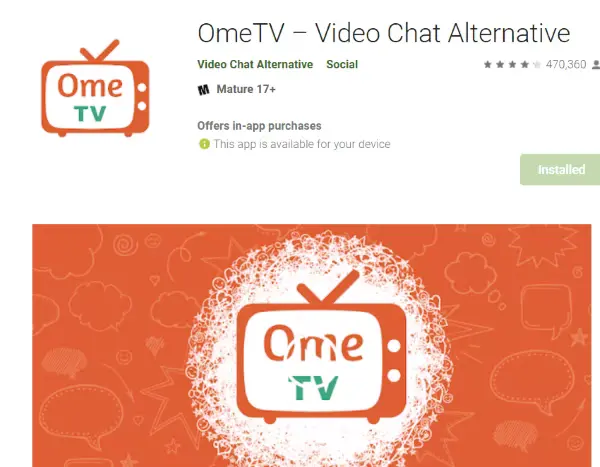
The OmeTV listing in the Google Play Store — always install from here, never from a third-party APK site.
Since OmeTV is a fully supported Android app, installing it is as simple as downloading anything else from the Google Play Store. If your Play Store app hasn’t been updated in a while, update it first — otherwise OmeTV may not show up properly in your search results.
Download OmeTV from Google Play StoreOnly install OmeTV through the official Google Play Store. APK files from unofficial websites can be modified to include malware or hidden trackers, even if they look identical to the real app.
- Open the Google Play Store app on your Android device.
- Tap the search bar and type “OmeTV”.
- Select the official OmeTV app from the search results.
- Tap Install and wait for the download to finish.
- Once installed, tap Open to launch OmeTV and start chatting.
You don’t need to create an account or fill out a profile to get started — just open the app, allow camera and microphone access, and you’ll be matched with someone in moments.

Adding OmeTV to your iPhone Home Screen through Safari — it launches and feels just like a native app.
The easiest way to get OmeTV on an iPhone is through the App Store, and for most regions that’s all you’ll need to do — search for OmeTV, tap Get, and install it like any other app.
However, if you tap Get it on the App Store and see a message saying the app isn’t available in your country or region, there’s no need to worry. OmeTV also works as a web app, and Safari lets you add it to your Home Screen so it opens and behaves almost exactly like the native app — no App Store listing required.
Use the web app method below. It takes about a minute to set up and gives you the same app-like experience directly from your Home Screen.
Installing OmeTV as a Web App via Safari
- Open Safari on your iPhone and go to the official OmeTV website.
- Tap the Share button at the bottom of the screen.
- Scroll down and select Add to Home Screen. If you don’t see it right away, tap More first, then choose Add to Home Screen.
- Optionally edit the name shown for the icon, then tap Add.
- Safari creates an OmeTV icon on your Home Screen — from now on, tapping it opens OmeTV in its own standalone window, just like a regular installed app.
Whichever method you use, there’s no account or registration required — grant camera and microphone access when prompted, and you’re ready to start meeting people.

Running OmeTV on a PC through BlueStacks — the Google Play Store works exactly as it would on an Android phone.
OmeTV doesn’t currently ship a dedicated Windows or Mac application, so desktop users have two main options: using OmeTV directly through a web browser, or running the Android app through an emulator. Emulators like BlueStacks and NoxPlayer recreate an Android environment on your computer, letting you install and use OmeTV exactly as you would on a phone.
Option 1: Using BlueStacks
- Go to the official BlueStacks website and download the installer for your OS.
- Run the installer and follow the on-screen setup instructions.
- Once installation finishes, BlueStacks will launch automatically.
- Open the Google Play Store inside BlueStacks and search for “OmeTV”.
- Click Install and wait for the app to finish downloading.
- Launch OmeTV from the BlueStacks home screen to start chatting.
Option 2: Using NoxPlayer
- Download and install NoxPlayer from its official website.
- Open the NoxPlayer emulator once installation is complete.
- Open the Google Play Store within NoxPlayer and search for “OmeTV”.
- Click Install on the official OmeTV listing.
- Once installed, click the OmeTV icon to launch it and begin chatting with strangers.
You can also visit OmeTV’s official website directly from your PC browser and use the web-based version, which requires no additional software — just a working webcam and microphone.
4 Key Features of OmeTV
Once you’ve installed OmeTV on your device of choice, here’s what you can expect from the app itself:
- One-swipe matching — instantly connect with a new stranger with a single tap or swipe.
- No sign-up required — no account, email, or profile setup needed to start chatting.
- Text chat fallback — switch to text-based chat if your camera or connection isn’t cooperating.
- 24/7 moderation — an active moderation team monitors reports and responds to rule violations.
- Gender and age filters — narrow down who you’re matched with based on your preferences.
- No browser plugins needed — works natively on most modern Android and iOS devices.
- Online status indicators — see at a glance who’s currently active before connecting.
- Ad-free experience — the core chat experience isn’t interrupted by advertising.
5 Safety Tips Before You Start Chatting
Since OmeTV connects you with people you’ve never met, it’s worth keeping a few basic safety habits in mind:
- Download only from official app stores
- Use the report/block button for bad behavior
- Set an appropriate age filter
- Keep conversations general at first
- Sharing your phone number or address
- Sending money or gift cards to strangers
- Installing OmeTV from unofficial APK sites
- Ignoring inappropriate behavior instead of reporting it
6 Frequently Asked Questions
7 Conclusion
Getting OmeTV set up is quick no matter which device you’re using. Here’s the process in short:
- Android — install directly from the Google Play Store
- iOS — install directly from the Apple App Store
- PC/Mac — use the browser version, or run the Android app through BlueStacks/NoxPlayer
Once installed, OmeTV makes it easy to meet new people through instant, no-sign-up video chat — just remember to stick to official download sources and follow basic safety habits when talking to strangers online.
🎥 Ready to Start Chatting on OmeTV?
Pick your platform above, follow the steps, and you’ll be connected with someone new in just a couple of minutes.